---
title: "Drawing Simple Text Objects"
canonical: https://www.graphicsmill.com/docs/gm/advanced-drawing-text.htm
product: "Graphics Mill"
---
# Drawing Simple Text Objects
**Note**
The classes described in this article are shorthand for the common cases. Each of them builds a [Text](https://www.graphicsmill.com/docs/gm/T_Aurigma_GraphicsMill_Drawing_Text.htm.md) object with a single text frame of the matching kind, so you do not have to create that frame yourself. When a text has to flow through several frames, or needs auto-sizing, copyfitting, or other frame properties, work with **Text** and its frames directly, as described in the [Working with the Text Class](https://www.graphicsmill.com/docs/gm/working-with-text-class.htm.md) article.
Using Graphics Mill you can draw various types of text such as plain text, bounded text, distorted text, or artistic text. All these types of text are drawn in Graphics Mill via the [Graphics.DrawText(Text)](https://www.graphicsmill.com/docs/gm/M_Aurigma_GraphicsMill_Drawing_Graphics_DrawText_1_f576d03f.htm.md) method. If you are not familiar with [Graphics](https://www.graphicsmill.com/docs/gm/T_Aurigma_GraphicsMill_Drawing_Graphics.htm.md), read the [Graphics. Drawing Images and Geometric Shapes](https://www.graphicsmill.com/docs/gm/graphics.htm.md) article. The following image illustrates how each text type looks:

When you create any of these texts you need to specify its colors and font via the [Pen](https://www.graphicsmill.com/docs/gm/T_Aurigma_GraphicsMill_Drawing_Pen.htm.md), [Brush](https://www.graphicsmill.com/docs/gm/T_Aurigma_GraphicsMill_Drawing_Brush.htm.md) and [Font](https://www.graphicsmill.com/docs/gm/T_Aurigma_GraphicsMill_Drawing_Font.htm.md) classes. To learn more about pens and brushes, read the [Pen and Brush](https://www.graphicsmill.com/docs/gm/graphics.htm.md) paragraph and the [Working with Font Registry](https://www.graphicsmill.com/docs/gm/working-with-font-registry.htm.md) article, which discusses all the specifics about fonts.
Below we will discuss how to work with each type of text in detail and observe all text options:
- Plain Text
- Bounded Text
- Distorted text
- Art text
- Text Options
## Plain Text
The [PlainText](https://www.graphicsmill.com/docs/gm/T_Aurigma_GraphicsMill_Drawing_PlainText.htm.md) class represents plain text. This class allows drawing a specified text string at the specified location on **Graphics**. Here is the code for drawing plain text:
```csharp
using (var bitmap = new Bitmap(200, 80, PixelFormat.Format24bppRgb, RgbColor.White))
using (var graphics = bitmap.GetGraphics())
{
var plainText = new PlainText("Plain Text", graphics.CreateFont("Arial", 28), new System.Drawing.PointF(20, 40));
graphics.DrawText(plainText);
bitmap.Save(@"Images\Output\out.png");
}
```
This snippet produces the image containing the horizontal text string as follows:
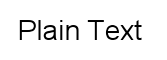
If you need to locate the string vertically, set the [PlainText.Vertical](https://www.graphicsmill.com/docs/gm/P_Aurigma_GraphicsMill_Drawing_PlainText_Vertical.htm.md) property to `true`. If a specified text string contains `\n` symbols, the plain text will be divided into lines. However, unlike bounded text, you cannot put limitations on the width of the plain text. For example, if you need to draw text inside a rectangle, the text can exceed the rectangle's width and **PlainText** will not address the overlap automatically. Thus, bounded text is more appealing for the given example (see below). The following snippet demonstrates how to divide text into lines:
```csharp
using (var bitmap = new Bitmap(200, 80, PixelFormat.Format24bppRgb, RgbColor.White))
using (var graphics = bitmap.GetGraphics())
{
var plainText = new PlainText("Plain\nText", graphics.CreateFont("Arial", 28), new System.Drawing.PointF(20, 40));
graphics.DrawText(plainText);
bitmap.Save(@"Images\Output\out.png");
}
```
This snippet produces the following result:
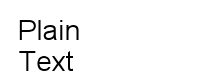
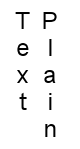
If you want to draw plain text divided into lines vertically, remember that lines will follow from the right to the left. The following snippet demonstrates how to divide text into lines and draw it vertically:
```csharp
using (var bitmap = new Bitmap(80, 200, PixelFormat.Format24bppRgb, RgbColor.White))
using (var graphics = bitmap.GetGraphics())
{
var plainText = new PlainText("Plain\nText", graphics.CreateFont("Arial", 24), new System.Drawing.PointF(50, 40));
plainText.Vertical = true;
graphics.DrawText(plainText);
bitmap.Save(@"Images\Output\out.png");
}
```
Here is the result:
## Bounded Text
The [BoundedText](https://www.graphicsmill.com/docs/gm/T_Aurigma_GraphicsMill_Drawing_BoundedText.htm.md) class represents bounded text that is used when you need to locate text inside a specified rectangle. For example, if you want to draw a text paragraph with a specified alignment, **BoundedText** allows you to perform this with ease. Here is the code for drawing bounded text:
```csharp
using (var bitmap = new Bitmap(200, 80, PixelFormat.Format24bppRgb, RgbColor.White))
using (var graphics = bitmap.GetGraphics())
{
var boundedText = new BoundedText("Bounded Text", graphics.CreateFont("Arial", 28), new System.Drawing.RectangleF(20, 10, 110, 70));
graphics.DrawText(boundedText);
bitmap.Save(@"Images\Output\out.png");
}
```
This snippet produces the following result:
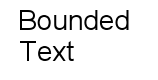
If the bounded text is longer than the rectangle's width, it is divided into lines; if the text is longer than the rectangle's height, it is clipped. You also can use the `\n` symbols to divide text into lines. The following image illustrates how different texts orient inside the specified rectangle:
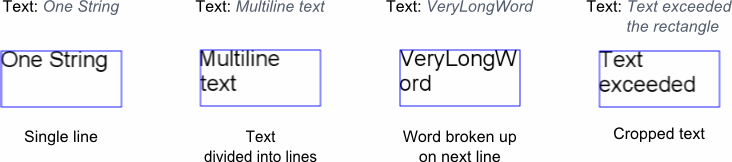
By default, bounded text is aligned along the left edge, but you can change that. We will discuss how to work with text options below.
Like **PlainText**, **BoundedText** provides the [Vertical](https://www.graphicsmill.com/docs/gm/P_Aurigma_GraphicsMill_Drawing_BoundedText_Vertical.htm.md) property that allows locating text vertically in the specified rectangle, wherein lines will be drawn from the right to the left.
## Distorted Text
Distorted text is a text string drawn along a vector path. To learn all about paths, read the [Working with Paths](https://www.graphicsmill.com/docs/gm/working-with-path.htm.md) article. There are two types of distorted text:
- **Path text** drawn along a single path, that is, the top and bottom lines of the text are aligned to the same path.
- **Double path text** drawn along two paths, that is, the top and bottom lines of the text are located along two different curves.
### Path Text
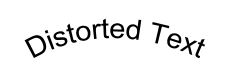
The [PathText](https://www.graphicsmill.com/docs/gm/T_Aurigma_GraphicsMill_Drawing_PathText.htm.md) class represents a text string located along a curve specified as a vector path. **PathText** provides the [Path](https://www.graphicsmill.com/docs/gm/P_Aurigma_GraphicsMill_Drawing_PathText_Path.htm.md) property inherited from the [Drawing.Path](https://www.graphicsmill.com/docs/gm/T_Aurigma_GraphicsMill_Drawing_Path.htm.md) class that allows copying an existed path or drawing it from scratch as the [Working with Paths](https://www.graphicsmill.com/docs/gm/working-with-path.htm.md) article discusses. To draw path text you need to create a **PathText** class instance specifying a string that will be located on a curve, font characteristics, brush, and a path are defined for the curve. The following snippet illustrates how to create a quadratic Bezier curve and draw text on it:
```csharp
using (var bitmap = new Bitmap(200, 80, PixelFormat.Format24bppRgb, RgbColor.White))
using (var graphics = bitmap.GetGraphics())
using (var path = new Path())
{
path.MoveTo(10, 60);
path.CurveTo(85, 20, 175, 60);
var distortedText = new PathText("Distorted Text", graphics.CreateFont("Arial", 28), new SolidBrush(RgbColor.Black), path);
graphics.DrawText(distortedText);
bitmap.Save(@"Images\Output\out.png");
}
```
Here is the result of this snippet:
### Double Path Text
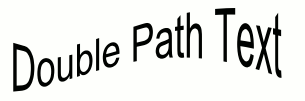
The [DoublePathText](https://www.graphicsmill.com/docs/gm/T_Aurigma_GraphicsMill_Drawing_DoublePathText.htm.md) class represents a text string, the top and bottom lines of which are defined by different curves. The top and bottom lines of **DoublePathText** are defined by the [TopPath](https://www.graphicsmill.com/docs/gm/P_Aurigma_GraphicsMill_Drawing_DoublePathText_TopPath.htm.md) and [BottomPath](https://www.graphicsmill.com/docs/gm/P_Aurigma_GraphicsMill_Drawing_DoublePathText_BottomPath.htm.md) properties, respectively. These properties are inherited from the **Drawing.Path** class allowing copying or creating paths as the [Working with Paths](https://www.graphicsmill.com/docs/gm/working-with-path.htm.md) article discusses. As **DoublePathText** draws text along two curves, you can chose along which curve the text should be aligned via the [MainPath](https://www.graphicsmill.com/docs/gm/P_Aurigma_GraphicsMill_Drawing_DoublePathText_MainPath.htm.md) property. By default, the bottom path is the main one. The snippet below demonstrates how to draw double path text:
```csharp
using (var bitmap = new Bitmap(400, 250, PixelFormat.Format24bppRgb, RgbColor.White))
using (var graphics = bitmap.GetGraphics())
using (var doublePathText = new DoublePathText("Double Path Text", graphics.CreateFont("Arial", 36), new SolidBrush(RgbColor.Black)))
{
doublePathText.ParagraphStyle.Alignment = TextAlignment.Center;
doublePathText.TopPath.MoveTo(26, 71);
doublePathText.TopPath.CurveTo(128, 162, 186, 21, 367, 64);
doublePathText.BottomPath.MoveTo(26, 152);
doublePathText.BottomPath.CurveTo(121, 177, 183, 68, 368, 157);
graphics.DrawText(doublePathText);
bitmap.Save(@"Images\Output\out.png");
}
```
This snippet produces the following result:
**DoublePathText** provides the [BaseHeight](https://www.graphicsmill.com/docs/gm/P_Aurigma_GraphicsMill_Drawing_DoublePathText_BaseHeight.htm.md) property that changes the text height but preserves its length. For example, the following two images illustrate how **BaseHeight** affects the text:
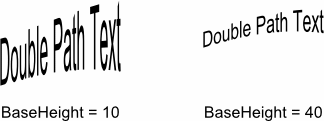
As you may have noticed, the greater the **BaseHeight** value is, the smaller the text height will be, but keep in mind that the **BaseHeight** value needs to be more than zero.
## Art Text
The [Aurigma.GraphicsMill.Drawing.Art](https://www.graphicsmill.com/docs/gm/N_Aurigma_GraphicsMill_Drawing_Art.htm.md) namespace represents a gallery of text with complex shapes. Using **Art** you can draw already formatted text, for example, curved, slanted, or rounded. **Art** provides seven classes representing different formatted text styles. The following table names all these classes, discusses their properties, and illustrates how each text variety looks:
| Class Name | Text View | Properties |
| --- | --- | --- |
| [BridgeText](https://www.graphicsmill.com/docs/gm/T_Aurigma_GraphicsMill_Drawing_Art_BridgeText.htm.md) | 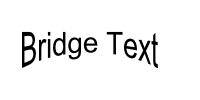 | The [Bend](https://www.graphicsmill.com/docs/gm/P_Aurigma_GraphicsMill_Drawing_Art_BridgeText_Bend.htm.md) property indicates how much text will be bended. The **Bend** value can be in the range [0; 1], where the more the value is, the more text will be bended. By default, the **Bend** value is `0`. |
| [BulgeText](https://www.graphicsmill.com/docs/gm/T_Aurigma_GraphicsMill_Drawing_Art_BulgeText.htm.md) | 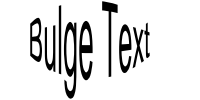 | The **Bend** property indicates how much text will be bended. The **Bend** value can be in the range [0; 1], where the more the value is, the more text will be bended. By default, the **Bend** value is `0`. |
| [PinchText](https://www.graphicsmill.com/docs/gm/T_Aurigma_GraphicsMill_Drawing_Art_PinchText.htm.md) | 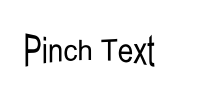 | The **Bend** property indicates how much text will be bended. The **Bend** value can be in the range [0; 1], where the more the value is, the more text will be bended. By default, the **Bend** value is `0`. |
| [RoofText](https://www.graphicsmill.com/docs/gm/T_Aurigma_GraphicsMill_Drawing_Art_RoofText.htm.md) | 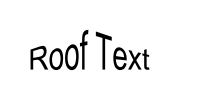 | The **Bend** property indicates how much text will be bended. The **Bend** value can be in the range [-1; 1], where the more the value is, the more text will be bended. By default, the **Bend** value is `0`. |
| [RoundText](https://www.graphicsmill.com/docs/gm/T_Aurigma_GraphicsMill_Drawing_Art_RoundText.htm.md) | 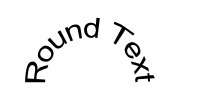 | The **Bend** property indicates how much text will be rounded. The **Bend** value can be in the range [-1; 1], where the more the value is, the more text will be rounded. By default, the **Bend** value is `0`. |
| [ValleyText](https://www.graphicsmill.com/docs/gm/T_Aurigma_GraphicsMill_Drawing_Art_ValleyText.htm.md) | 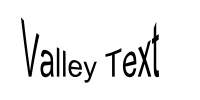 | The **Bend** property indicates how much text will be bended. The **Bend** value can be in the range [0; 1], where the more the value is, the more text will be bended. By default, the **Bend** value is `0`. |
| [WedgeText](https://www.graphicsmill.com/docs/gm/T_Aurigma_GraphicsMill_Drawing_Art_WedgeText.htm.md) | 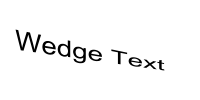 | The [LeftScale](https://www.graphicsmill.com/docs/gm/P_Aurigma_GraphicsMill_Drawing_Art_WedgeText_LeftScale.htm.md) property scales the left edge of text. The default value is `1`.
The [RightScale](https://www.graphicsmill.com/docs/gm/P_Aurigma_GraphicsMill_Drawing_Art_WedgeText_RightScale.htm.md) property scales the right edge of text. The default value is `1`.
The [Tilt](https://www.graphicsmill.com/docs/gm/P_Aurigma_GraphicsMill_Drawing_Art_WedgeText_Tilt.htm.md) property is the extent of slanting text. The more the value is, the more text will be slanted. The default, value is `0`. |
For each art text you should specify the [Center](https://www.graphicsmill.com/docs/gm/P_Aurigma_GraphicsMill_Drawing_Art_ArtText_Center.htm.md) property defining the location of text. The following snippet illustrates how to create bridge text:
```csharp
using (var bitmap = new Bitmap(200, 100, PixelFormat.Format24bppRgb, RgbColor.White))
using (var graphics = bitmap.GetGraphics())
{
var artText = new BridgeText("Art Text", graphics.CreateFont("Arial", 28), new SolidBrush(RgbColor.Black), new System.Drawing.PointF(70, 50), 0.5f);
graphics.DrawText(artText);
bitmap.Save(@"Images\Output\out.png");
}
```
## Text Options
The **Text** class, from which all types of text are inherited, provides several text options such as alignment, transformation, and effects.
### Alignment
All types of text, with the exception of [ArtText](https://www.graphicsmill.com/docs/gm/T_Aurigma_GraphicsMill_Drawing_Art_ArtText.htm.md), can be aligned via the [Alignment](https://www.graphicsmill.com/docs/gm/P_Aurigma_GraphicsMill_Drawing_PlainText_Alignment.htm.md) property. There are six types of [TextAlignment](https://www.graphicsmill.com/docs/gm/T_Aurigma_GraphicsMill_Drawing_TextAlignment.htm.md):
- Left
- Right
- Top
- Bottom
- Center
- Justification
Note, that the `Right` and `Left` values affect horizontal text, whereas the `Top` and `Bottom` values affect vertical text. You can apply the `Center` and `Justification` values to both horizontal and vertical text. The following picture demonstrate how all the alignment settings work:
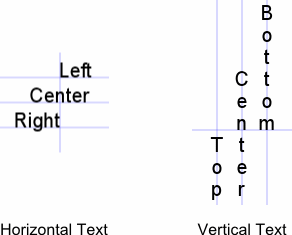
Alignment of each text is performed relatively to its location: **PlainText** is aligned relatively to the [Position](https://www.graphicsmill.com/docs/gm/P_Aurigma_GraphicsMill_Drawing_PlainText_Position.htm.md) point, **BoundedText** is aligned relatively to the specified [Rectangle](https://www.graphicsmill.com/docs/gm/P_Aurigma_GraphicsMill_Drawing_BoundedText_Rectangle.htm.md), **PathText** and **DoublePathText** are aligned relatively to **Path** and **MainPath**, respectively.
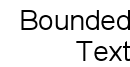
The following snippet demonstrates how you can align BoundedText along the right edge:
```csharp
using (var bitmap = new Bitmap(130, 100, PixelFormat.Format24bppRgb, RgbColor.White))
using (var graphics = bitmap.GetGraphics())
{
var boundedText = new BoundedText("Bounded Text", graphics.CreateFont("Arial", 28), new System.Drawing.RectangleF(20, 10, 110, 90));
boundedText.ParagraphStyle.Alignment = TextAlignment.Right;
graphics.DrawText(boundedText);
bitmap.Save(@"Images\Output\out.png");
}
```
Here is the result of this snippet:
### Text Transforming
All types of text can be transformed by a transformation matrix performing a geometric transform such as rotating, scaling, translating, etc. This matrix is represented as the [Matrix](https://learn.microsoft.com/en-us/dotnet/api/system.drawing.drawing2d.matrix?view=netframework-4.8) class specified via the [Transform](https://www.graphicsmill.com/docs/gm/P_Aurigma_GraphicsMill_Drawing_Text_Transform.htm.md) property. For example, the following rotated text can be produced with the code below:
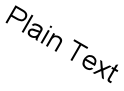
```csharp
using (var bitmap = new Bitmap(150, 150, PixelFormat.Format24bppRgb, RgbColor.White))
using (var graphics = bitmap.GetGraphics())
using (var m = new System.Drawing.Drawing2D.Matrix())
{
m.Rotate(30);
var plainText = new PlainText("Plain Text", graphics.CreateFont("Arial", 28), new System.Drawing.PointF(40, 40));
plainText.Transform = m;
graphics.DrawText(plainText);
bitmap.Save(@"Images\Output\out.png");
}
```
### Text Effects
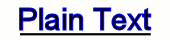
Using the [Pen](https://www.graphicsmill.com/docs/gm/P_Aurigma_GraphicsMill_Drawing_Text_Pen.htm.md) and [Brush](https://www.graphicsmill.com/docs/gm/P_Aurigma_GraphicsMill_Drawing_Text_Brush.htm.md) properties you can change the colors of text (to learn more about pens and brushes read the [Graphics. Drawing Images and Geometric Shapes](https://www.graphicsmill.com/docs/gm/graphics.htm.md) article). You can also underline plain text and bounded text by setting the [Underline](https://www.graphicsmill.com/docs/gm/P_Aurigma_GraphicsMill_Drawing_PlainText_Underline.htm.md) property to `true`. For example, the following snippet demonstrates how to fill text with blue and underline it:
```csharp
using (var bitmap = new Bitmap(170, 40, PixelFormat.Format24bppRgb, RgbColor.White))
using (var graphics = bitmap.GetGraphics())
{
var plainText = new PlainText("Plain Text", graphics.CreateFont("Arial", 30), new System.Drawing.PointF(20, 30));
plainText.Pen = new Pen(RgbColor.Blue);
plainText.Brush = new SolidBrush(RgbColor.Black);
plainText.Underline = true;
graphics.DrawText(plainText);
bitmap.Save(@"Images\Output\out.png");
}
```
Here is the result:
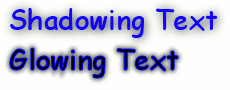
Graphics Mill provides such complex effects as glowing and shadowing. These effects are represented by the [Effects.Glow](https://www.graphicsmill.com/docs/gm/T_Aurigma_GraphicsMill_Drawing_Effects_Glow.htm.md) and [Effects.Shadow](https://www.graphicsmill.com/docs/gm/T_Aurigma_GraphicsMill_Drawing_Effects_Shadow.htm.md) classes. If you want to make text glow you can specify the [Color](https://www.graphicsmill.com/docs/gm/P_Aurigma_GraphicsMill_Drawing_Effects_Glow_Color.htm.md), [Size](https://www.graphicsmill.com/docs/gm/P_Aurigma_GraphicsMill_Drawing_Effects_Glow_Size.htm.md) and [Opacity](https://www.graphicsmill.com/docs/gm/P_Aurigma_GraphicsMill_Drawing_Effects_Glow_Opacity.htm.md) of glowing; when shadowing text you can handle its [Color](https://www.graphicsmill.com/docs/gm/P_Aurigma_GraphicsMill_Drawing_Effects_Shadow_Color.htm.md), [Size](https://www.graphicsmill.com/docs/gm/P_Aurigma_GraphicsMill_Drawing_Effects_Shadow_Size.htm.md), offsets of shadow ([OffsetX](https://www.graphicsmill.com/docs/gm/P_Aurigma_GraphicsMill_Drawing_Effects_Shadow_OffsetX.htm.md) and [OffsetY](https://www.graphicsmill.com/docs/gm/P_Aurigma_GraphicsMill_Drawing_Effects_Shadow_OffsetY.htm.md)), and [Opacity](https://www.graphicsmill.com/docs/gm/P_Aurigma_GraphicsMill_Drawing_Effects_Shadow_Opacity.htm.md). To make text glow or create its shadow set the [Effect](https://www.graphicsmill.com/docs/gm/P_Aurigma_GraphicsMill_Drawing_Text_Effect.htm.md) property to one of these classes as the following snippet shows:
```csharp
using (var bitmap = new Bitmap(230, 90, PixelFormat.Format24bppRgb, RgbColor.White))
using (var graphics = bitmap.GetGraphics())
{
using (var shadowingText = new PlainText("Shadowing Text", graphics.CreateFont("Comic", 28)))
{
shadowingText.Position = new System.Drawing.PointF(10, 30);
shadowingText.Brush = new SolidBrush(RgbColor.Blue);
shadowingText.Effect = new Shadow(RgbColor.Black, 5, 1, 1, 0.9f);
graphics.DrawText(shadowingText);
}
using (var glowingText = new PlainText("Glowing Text", graphics.CreateFont("Comic", 28)))
{
glowingText.Position = new System.Drawing.PointF(10, 70);
glowingText.Pen = new Pen(RgbColor.Blue);
glowingText.Effect = new Glow(RgbColor.Black, 5, 0.5f);
graphics.DrawText(glowingText);
}
bitmap.Save(@"Images\Output\out.png");
}
```
This snippet produces the following result:
## See Also
### Reference
- [Aurigma.GraphicsMill.Drawing Namespace](https://www.graphicsmill.com/docs/gm/N_Aurigma_GraphicsMill_Drawing.htm.md)
- [Graphics Class](https://www.graphicsmill.com/docs/gm/T_Aurigma_GraphicsMill_Drawing_Graphics.htm.md)
- [Text Class](https://www.graphicsmill.com/docs/gm/T_Aurigma_GraphicsMill_Drawing_Text.htm.md)
- [PlainText Class](https://www.graphicsmill.com/docs/gm/T_Aurigma_GraphicsMill_Drawing_PlainText.htm.md)
- [BoundedText Class](https://www.graphicsmill.com/docs/gm/T_Aurigma_GraphicsMill_Drawing_BoundedText.htm.md)
- [Aurigma.GraphicsMill.Drawing.Art Namespace](https://www.graphicsmill.com/docs/gm/N_Aurigma_GraphicsMill_Drawing_Art.htm.md)
- [Path Class](https://www.graphicsmill.com/docs/gm/T_Aurigma_GraphicsMill_Drawing_Path.htm.md)
- [Aurigma.GraphicsMill.Drawing.Effects Namespace](https://www.graphicsmill.com/docs/gm/N_Aurigma_GraphicsMill_Drawing_Effects.htm.md)
### Manual
- [Graphics: Drawing Images and Geometric Shapes](https://www.graphicsmill.com/docs/gm/graphics.htm.md)
- [Working with the Text Class](https://www.graphicsmill.com/docs/gm/working-with-text-class.htm.md)
- [Formatted Text](https://www.graphicsmill.com/docs/gm/advanced-formatted-text.htm.md)
- [Working with Paths](https://www.graphicsmill.com/docs/gm/working-with-path.htm.md)
### Other
- [Matrix Class](https://learn.microsoft.com/en-us/dotnet/api/system.drawing.drawing2d.matrix?view=netframework-4.8)