---
title: "Client-Side Control Scripting in AJAX Controls"
canonical: https://www.graphicsmill.com/docs/gm5/AjaxControlsClientSideScripting.htm
product: "Graphics Mill 5.5 for .NET"
---
This documentation is for the old version. [Go to the latest Graphics Mill docs](https://www.graphicsmill.com/docs/gm/)
# Client-Side Control Scripting in AJAX Controls
When you create ASP.NET applications besides server-side controls you may use client-side scripting approach (also known as AJAX). Graphics Mill contains AJAX-based controls which allow you to create more responsive web pages and increase the interactivity, load speed, functionality and usability. For example, to change some property of the control without client-side scripting you should call a server-side function to modify it. As a result, a postback will occur and your page will be refreshed. On the other hand, client-side scripting approach is based on HTML elements and JavaScript using that allows you to interact with controls (modify properties, call methods and add or remove event handlers) without postbacks.
## Client-Side Code Conventions
All basic server-side properties, methods and events of Graphics Mill AJAX Controls are doubled in client-side API. That allows you to call them from JavaScript in browser, while server-side members are called on server using C# or VB.NET code.
**Note**
Not all server-side members are doubled in client-side code and some properties are read-only.
Client-side objects names are similar to server-side ones and placed to reduced namespace. For example, [BitmapViewer](https://www.graphicsmill.com/docs/gm5/T_Aurigma_GraphicsMill_AjaxControls_BitmapViewer.htm.md) server-side control has **Aurigma.GraphicsMill.AjaxControls** namespace but [BitmapViewer](https://www.graphicsmill.com/docs/gm5/T_J_GraphicsMill_BitmapViewer.htm.md) client-side type - **GraphicsMill**. So, you don't need to write long lines of code.
All client-side members are called in the following notation:
- Every word in the member name are capitalized except for the first one, the prepended words (such as **get**, **set**, etc.) are separated from the member name with underscope ( \_ ).
- Names of the methods based on the server properties are constructed in the following way:
The property reader method has the word **get** prepended to the appropriate property name and separated with underscope, i.e. **get\_propertyName**. For example:
```
```
The property writer method has the word **set** prepended to the appropriate property name and separated with underscope, i.e. **set\_propertyName**. For example:
```
```
- Events are represented in the following ways:
The method that attaches an event handler has the word **add** prepended to the appropriate event name and separated with underscope, i.e. **add\_eventName**. For example:
```
```
The method that detaches an event handler has the word **remove** prepended to the appropriate event name and separated with underscope, i.e. **remove\_eventName**. For example:
```
```
- Members that accept enumeration as an argument accept a name of the enumeration member with a namespace prefix. For example:
```
```
## Client-Side Objects
The BitmapViewer class is designed to display the image represented by the [Bitmap](https://www.graphicsmill.com/docs/gm5/T_Aurigma_GraphicsMill_Bitmap.htm.md) object. It allows to:
- Zoom;
- Change zoom mode;
- Align image in the control;
- Set navigators;
- Set rubberbands.
For a further information on BitmapViewer class members see [BitmapViewer members](https://www.graphicsmill.com/docs/gm5/AllMembers_T_J_GraphicsMill_BitmapViewer.htm.md). General information on concepts of displaying images in the control see in the article [Displaying Image in BitmapViewer (AJAX Controls)](https://www.graphicsmill.com/docs/gm5/AjaxControlsDisplayingImageinBitmapViewer.htm.md).
All navigators are represented by separate classes and can be set in the BitmapViewer using [navigator](https://www.graphicsmill.com/docs/gm5/P_J_GraphicsMill_BaseViewer_navigator.htm.md) property. The following navigators are available:
- [ZoomInNavigator](https://www.graphicsmill.com/docs/gm5/T_J_GraphicsMill_ZoomInNavigator.htm.md) allows user to zoom the image in on left mouse button click.
- [ZoomOutNavigator](https://www.graphicsmill.com/docs/gm5/T_J_GraphicsMill_ZoomOutNavigator.htm.md) allows user to zoom the image out on left mouse button click.
- [ZoomRectangleNavigator](https://www.graphicsmill.com/docs/gm5/T_J_GraphicsMill_ZoomRectangleNavigator.htm.md) allows user to zoom selected rectangle portion of the image in.
- [PanNavigator](https://www.graphicsmill.com/docs/gm5/T_J_GraphicsMill_PanNavigator.htm.md) allows user to drag the image while the mouse button is pressed.
The BitmapViewer has the [rubberband](https://www.graphicsmill.com/docs/gm5/P_J_GraphicsMill_BaseViewer_rubberband.htm.md) property which specifies the rubberband object. There is only one rubberband implemented in Graphics Mill AJAX Controls at this moment. This one is represented by [RectangleRubberband](https://www.graphicsmill.com/docs/gm5/T_J_GraphicsMill_RectangleRubberband.htm.md) class. This rubberband allows user to select a rectangle portion of the image, also the selection can be moved or resized. You can get more information about these classes in the topic [Using Navigators and Rubberbands (AJAX Controls)](https://www.graphicsmill.com/docs/gm5/AjaxControlsUsingNavigatorsandRubberbands.htm.md).
## Client-Side Scripting Code Sample
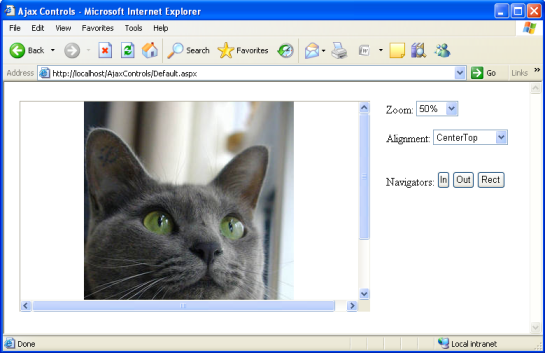
The following code sample demonstrates how the client-side scripting approach can be applied to change alignment and zoom in/out the image without page reload
Add BitmapViewer, ZoomInNavigator, ZoomOutNavigator and ZoomRectangleNavigator client-side objects:
```html
```
Load image to the BitmapViewer instance:
```
Protected Sub Page_Load(ByVal sender As Object, ByVal e As System.EventArgs) Handles Me.Load
If Not Page.IsPostBack Then
BitmapViewer1.Bitmap.Load(Server.MapPath("cat.jpg"))
End If
End Sub
```
```csharp
protected void Page_Load(object sender, EventArgs e)
{
if (!Page.IsPostBack)
{
BitmapViewer1.Bitmap.Load(Server.MapPath("cat.jpg"));
}
}
```
Add the following HTML elements:
1. two select elements to set zoom and alignment up;
2. three buttons to choose a navigator.
```html
```
Access the BitmapViewer using its **ClientID**:
```
```
This script demonstrates a common way to get the BitmapViewer object. Additionaly, you can use a simplified script to get the object, you need to get it at the same document hierarchy level:
```
```
Pay attention, the BitmapViewer or any other client-side object is inaccessible on a standard JavaScript **window.onload** event. If you need to access some members of an object when page is loaded you should use **Sys.Application.add\_load** ASP.NET AJAX event which fires after all scripts are loaded and objects are created and initialized in the application. Take into account, this event fires on every partial page update, so you should check whether a page is partialy loaded additionally. A simple JavaScript below demonstrates how to get the BitmapViewer when page is loaded:
```
```
Write JavaScript event handlers which modify the state of the control using [zoom](https://www.graphicsmill.com/docs/gm5/P_J_GraphicsMill_BaseViewer_zoom.htm.md), [viewportAlignment](https://www.graphicsmill.com/docs/gm5/P_J_GraphicsMill_BaseViewer_viewportAlignment.htm.md) and navigator client-side properties.
```
```
If you run the web application you will see the following site in your browser: