---
title: "Basic Concepts of Color Reduction"
canonical: https://www.graphicsmill.com/docs/gm5/BasicConceptsofColorReduction.htm
product: "Graphics Mill 5.5 for .NET"
---
This documentation is for the old version. [Go to the latest Graphics Mill docs](https://www.graphicsmill.com/docs/gm/)
# Basic Concepts of Color Reduction
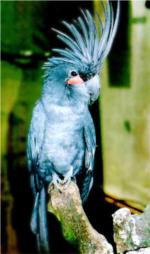
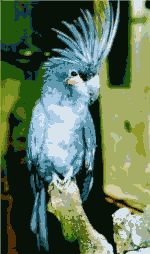
Most color image printing and displaying devices do not have the capability to reproduce true color images. Consequently, the number of colors has to be reduced drastically to produce a color image with a limited palette. During the process of translation a true color image into a palette-based image reduction of color count takes place. An image becomes "poor", "color layers" come into particular prominence. You can notice the difference between the original true color image and the 256 color palette-based image.
|  |  |
| --- | --- |
| Original true color image | 32 color palette-based
image without dithering |
This article describes two main pecularities of color reducing which you will need to take into account when converting images.
- Dithering
- Noise Dithering
- Ordered Dithering
- Error Diffusion
- How to Reduce Color in Graphics Mill for .NET
## Dithering
There is a class of algorithms, known as *dithering*, which allow to reduce the influence of this effect and to save the coloring of the original image. The main idea of these algorithms is redistribution of colors of neighbour pixels into some patterns. The eye averages two or more colors in a neighborhood of the point of interest and creates an illusion of another color. The resulting image of these patterns is percieved by a human eye as a new color which is not in the palette.
Another dithering parameter is its *intensity* - the ratio between the images with and without dithering. When 0% intensity is used, no dithering is visible (the same as disabled dithering).
There are 3 main classes of the dithering algorithms:
- Noise dithering
- Ordered dithering
- Error diffusion
### Noise Dithering
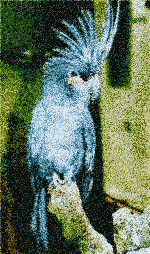
In this algorithm dithering patterns are built randomly. So a white random number in the range [-A;A] is added to each pixel of the original image. The following example illustrates the application of noise dithering during the process of creating a 32 color image.
|  |
| --- |
| Noise dithering |
### Ordered Dithering
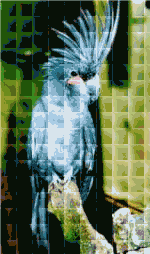
This dithering algorithm represents a fixed way of building dithering patterns. For the sake of simplicity let's imagine that output fixed-palette image has only two colors. We know that the human visual system tends to average a region around a pixel instead of treating each pixel individually, thus it is possible to create the illusion of many gray levels in a binary image, even though there are actually only two gray levels. With 2x2 binary pixel patterns, we can represent 5 different gray colors.

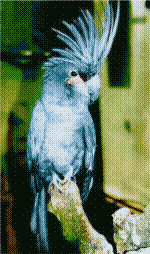
The same method is used when the count of colors in palette is more than two. The patterns of the ordered dithering are predefined. The following example illustrates the application of the ordered dithering with Bayer pattern during the process of creating a 32 color image.
|  |  |
| --- | --- |
| Bayer ordered dithering | Spiral ordered dithering |
### Error Diffusion
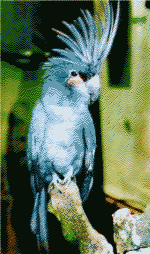
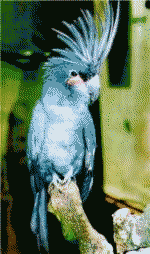
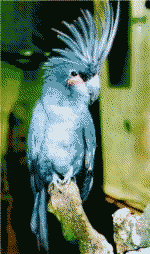
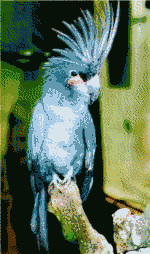
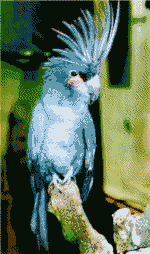
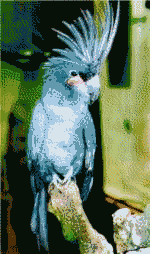
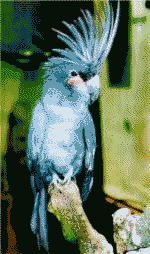
Error diffusion algorithms build dithering patterns dynamically basing on each pixel. After conversion of true color image pixels can differ from the same pixels of output palette-based image. This difference is called "quantization error". The error diffusion achieves the effect of color emulation by distributing this error encountered in quantizing a pixel to neighboring pixels, ensuring in effect, that the neighboring pixels are biased in the reverse direction. In practice the following error diffusion filters are used: Floyd-Steinberg, Fan, Burkes, Stucki, Sierra, Jarvice, Stephenson. These error diffusion filters use a fixed kernel: the coefficients of the error diffusion filter are preset. The following examples illustrate different diffusion filters.
|  |  |  |  |
| --- | --- | --- | --- |
| Original dithering | Floyd-Steinberg
dithering | Fan dithering | Jarvis dithering |
|  |  |  | 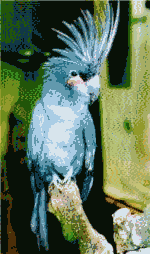 |
| Stucki dithering | Sierra dithering | Burkes dithering | Stephenson dithering |
## How to Reduce Color in Graphics Mill for .NET
Noise dithering works very quickly but produces "noisy" images. Ordered dithering approximates color blends using fixed patterns; as a result, solid colors are emphasized and edges appear harder. Error diffusion scatters pixels irregularly, making edges and colors softer. Graphics Mill for .NET supports all these dithering techniques.
There are several ways to convert pixels to indexed pixel format:
- Using [Convert(PixelFormat)](https://www.graphicsmill.com/docs/gm5/M_Aurigma_GraphicsMill_ColorManagementProvider_Convert_1_3e209c07.htm.md) method of the [ColorManagementProvider](https://www.graphicsmill.com/docs/gm5/T_Aurigma_GraphicsMill_ColorManagementProvider.htm.md) returned by the [ColorManagement](https://www.graphicsmill.com/docs/gm5/P_Aurigma_GraphicsMill_Bitmap_ColorManagement.htm.md) property of the [Bitmap](https://www.graphicsmill.com/docs/gm5/T_Aurigma_GraphicsMill_Bitmap.htm.md) class. This method is easy to use (it has only one argument - the target pixel format), but it gives less control for conversion parameters. To specify a dithering parameters use the [Dithering](https://www.graphicsmill.com/docs/gm5/P_Aurigma_GraphicsMill_ColorManagementProvider_Dithering.htm.md) and [DitheringIntensity](https://www.graphicsmill.com/docs/gm5/P_Aurigma_GraphicsMill_ColorManagementProvider_DitheringIntensity.htm.md) properties.
- Using [ConvertToIndexed(Int32, ColorPaletteType, ColorPalette)](https://www.graphicsmill.com/docs/gm5/M_Aurigma_GraphicsMill_ColorManagementProvider_ConvertToIndexed_3_6c5df414.htm.md) method of the ColorManagementProvider returned by the ColorManagement property of the Bitmap class. It allows to specify which kind of palette to use during conversion (including a custom palette). Dithering and DitheringIntensity properties are also work for this method.
- Using [PixelFormatConverter](https://www.graphicsmill.com/docs/gm5/T_Aurigma_GraphicsMill_Transforms_PixelFormatConverter.htm.md) transform class. It has properties [Dithering](https://www.graphicsmill.com/docs/gm5/P_Aurigma_GraphicsMill_Transforms_PixelFormatConverter_Dithering.htm.md) and [DitheringIntensity](https://www.graphicsmill.com/docs/gm5/P_Aurigma_GraphicsMill_Transforms_PixelFormatConverter_DitheringIntensity.htm.md) to set dithering settings.
Here is a simple example which converts an image to an 8-bit indexed image with default dithering parameters:
```
'Convert to indexed image with default settings
'(256 colors, Floyd-Steinberg dithering)
bitmap.ColorManagement.ConvertToIndexed(8, _
Aurigma.GraphicsMill.ColorPaletteType.WebSafe, Nothing)
```
```csharp
//Convert to indexed image with default settings
//(256 colors, Floyd-Steinberg dithering)
bitmap.ColorManagement.ConvertToIndexed(8,
Aurigma.GraphicsMill.ColorPaletteType.WebSafe, null);
```
The code below demonstrates how to modify all dithering settings. All images on this page where generated with it.
```
Dim bitmap As New Aurigma.GraphicsMill.Bitmap("C:\Parrot.jpg")
Dim result As New Aurigma.GraphicsMill.Bitmap
Dim pixelFormatConverter As New Aurigma.GraphicsMill.Transforms.PixelFormatConverter
'Reduce color count to 32
pixelFormatConverter.PaletteEntryCount = 32
pixelFormatConverter.DestinationPixelFormat = _
Aurigma.GraphicsMill.PixelFormat.Format8bppIndexed
pixelFormatConverter.Opacity = 1
'Without dithering
pixelFormatConverter.Dithering = Aurigma.GraphicsMill.Transforms.DitheringType.None
pixelFormatConverter.ApplyTransform(bitmap, result)
result.Save("C:\Dithering_None_x_x_x_32.png")
'White noise
pixelFormatConverter.Dithering = Aurigma.GraphicsMill.Transforms.DitheringType.Noise
pixelFormatConverter.DitheringIntensity = 0.5
pixelFormatConverter.ApplyTransform(bitmap, result)
result.Save("C:\Dithering_Noise_50_x_x_32.png")
'Ordered dithering
pixelFormatConverter.DitheringIntensity = 1
pixelFormatConverter.Dithering = Aurigma.GraphicsMill.Transforms.DitheringType.OrderedBayer2
pixelFormatConverter.ApplyTransform(bitmap, result)
result.Save("C:\Dithering_Ordered_100_Bayer_2_32.png")
pixelFormatConverter.Dithering = Aurigma.GraphicsMill.Transforms.DitheringType.OrderedBayer4
pixelFormatConverter.ApplyTransform(bitmap, result)
result.Save("C:\Dithering_Ordered_100_Bayer_4_32.png")
pixelFormatConverter.Dithering = Aurigma.GraphicsMill.Transforms.DitheringType.OrderedSpiral4
pixelFormatConverter.ApplyTransform(bitmap, result)
result.Save("C:\Dithering_Ordered_100_Spiral_4_32.png")
'Error diffusion
pixelFormatConverter.Dithering = Aurigma.GraphicsMill.Transforms.DitheringType.Original
pixelFormatConverter.ApplyTransform(bitmap, result)
result.Save("C:\Dithering_Original_100_x_x_32.png")
pixelFormatConverter.Dithering = Aurigma.GraphicsMill.Transforms.DitheringType.FloydSteinberg
pixelFormatConverter.ApplyTransform(bitmap, result)
result.Save("C:\Dithering_FloydSteinberg_100_x_x_32.png")
pixelFormatConverter.Dithering = Aurigma.GraphicsMill.Transforms.DitheringType.Fan
pixelFormatConverter.ApplyTransform(bitmap, result)
result.Save("C:\Dithering_Fan_100_x_x_32.png")
pixelFormatConverter.Dithering = Aurigma.GraphicsMill.Transforms.DitheringType.Jarvis
pixelFormatConverter.ApplyTransform(bitmap, result)
result.Save("C:\Dithering_Jarvis_100_x_x_32.png")
pixelFormatConverter.Dithering = Aurigma.GraphicsMill.Transforms.DitheringType.Stucki
pixelFormatConverter.ApplyTransform(bitmap, result)
result.Save("C:\Dithering_Stucki_100_x_x_32.png")
pixelFormatConverter.Dithering = Aurigma.GraphicsMill.Transforms.DitheringType.Sierra
pixelFormatConverter.ApplyTransform(bitmap, result)
result.Save("C:\Dithering_Sierra_100_x_x_32.png")
pixelFormatConverter.Dithering = Aurigma.GraphicsMill.Transforms.DitheringType.Burkes
pixelFormatConverter.ApplyTransform(bitmap, result)
result.Save("C:\Dithering_Burkes_100_x_x_32.png")
pixelFormatConverter.Dithering = Aurigma.GraphicsMill.Transforms.DitheringType.Stephenson
pixelFormatConverter.ApplyTransform(bitmap, result)
result.Save("C:\Dithering_Stephenson_100_x_x_32.png")
```
```csharp
Aurigma.GraphicsMill.Bitmap bitmap =
new Aurigma.GraphicsMill.Bitmap(@"C:\Parrot.jpg");
Aurigma.GraphicsMill.Bitmap result =
new Aurigma.GraphicsMill.Bitmap();
Aurigma.GraphicsMill.Transforms.PixelFormatConverter pixelFormatConverter =
new Aurigma.GraphicsMill.Transforms.PixelFormatConverter();
//Reduce color count to 32
pixelFormatConverter.PaletteEntryCount = 32;
pixelFormatConverter.DestinationPixelFormat =
Aurigma.GraphicsMill.PixelFormat.Format8bppIndexed;
pixelFormatConverter.Opacity = 1;
//Without dithering
pixelFormatConverter.Dithering = Aurigma.GraphicsMill.Transforms.DitheringType.None;
pixelFormatConverter.ApplyTransform(bitmap, result);
result.Save(@"C:\Dithering_None_x_x_x_32.png");
//White noise
pixelFormatConverter.Dithering = Aurigma.GraphicsMill.Transforms.DitheringType.Noise;
pixelFormatConverter.DitheringIntensity = 0.5f;
pixelFormatConverter.ApplyTransform(bitmap, result);
result.Save(@"C:\Dithering_Noise_50_x_x_32.png");
//Ordered dithering
pixelFormatConverter.DitheringIntensity = 1;
pixelFormatConverter.Dithering = Aurigma.GraphicsMill.Transforms.DitheringType.OrderedBayer2;
pixelFormatConverter.ApplyTransform(bitmap, result);
result.Save(@"C:\Dithering_Ordered_100_Bayer_2_32.png");
pixelFormatConverter.Dithering = Aurigma.GraphicsMill.Transforms.DitheringType.OrderedBayer4;
pixelFormatConverter.ApplyTransform(bitmap, result);
result.Save(@"C:\Dithering_Ordered_100_Bayer_4_32.png");
pixelFormatConverter.Dithering = Aurigma.GraphicsMill.Transforms.DitheringType.OrderedSpiral4;
pixelFormatConverter.ApplyTransform(bitmap, result);
result.Save(@"C:\Dithering_Ordered_100_Spiral_4_32.png");
//Error diffusion
pixelFormatConverter.Dithering = Aurigma.GraphicsMill.Transforms.DitheringType.Original;
pixelFormatConverter.ApplyTransform(bitmap, result);
result.Save(@"C:\Dithering_Original_100_x_x_32.png");
pixelFormatConverter.Dithering = Aurigma.GraphicsMill.Transforms.DitheringType.FloydSteinberg;
pixelFormatConverter.ApplyTransform(bitmap, result);
result.Save(@"C:\Dithering_FloydSteinberg_100_x_x_32.png");
pixelFormatConverter.Dithering = Aurigma.GraphicsMill.Transforms.DitheringType.Fan;
pixelFormatConverter.ApplyTransform(bitmap, result);
result.Save(@"C:\Dithering_Fan_100_x_x_32.png");
pixelFormatConverter.Dithering = Aurigma.GraphicsMill.Transforms.DitheringType.Jarvis;
pixelFormatConverter.ApplyTransform(bitmap, result);
result.Save(@"C:\Dithering_Jarvis_100_x_x_32.png");
pixelFormatConverter.Dithering = Aurigma.GraphicsMill.Transforms.DitheringType.Stucki;
pixelFormatConverter.ApplyTransform(bitmap, result);
result.Save(@"C:\Dithering_Stucki_100_x_x_32.png");
pixelFormatConverter.Dithering = Aurigma.GraphicsMill.Transforms.DitheringType.Sierra;
pixelFormatConverter.ApplyTransform(bitmap, result);
result.Save(@"C:\Dithering_Sierra_100_x_x_32.png");
pixelFormatConverter.Dithering = Aurigma.GraphicsMill.Transforms.DitheringType.Burkes;
pixelFormatConverter.ApplyTransform(bitmap, result);
result.Save(@"C:\Dithering_Burkes_100_x_x_32.png");
pixelFormatConverter.Dithering = Aurigma.GraphicsMill.Transforms.DitheringType.Stephenson;
pixelFormatConverter.ApplyTransform(bitmap, result);
result.Save(@"C:\Dithering_Stephenson_100_x_x_32.png");
```
## See Also
### Manual
- [Preserving Transparency During Color Reduction](https://www.graphicsmill.com/docs/gm5/PreserveTransparencyInIndexed.htm.md)
- [Color Reduction for Web](https://www.graphicsmill.com/docs/gm5/ColorReductionforWeb.htm.md)