---
title: "Color Reduction for Web"
canonical: https://www.graphicsmill.com/docs/gm5/ColorReductionforWeb.htm
product: "Graphics Mill 5.5 for .NET"
---
This documentation is for the old version. [Go to the latest Graphics Mill docs](https://www.graphicsmill.com/docs/gm/)
# Color Reduction for Web
When we apply color reduction for Web, our main goal is to minimize the file size to make the image to load faster and reduce traffic. It is especially important when you develop websites for mobile devices. On the other hand, it may lead to a worse image quality. As we would like to make website to be not only fast, but also eye-catching, we have to find a way to minimize a file size and at the same time avoid making the image unsuitable for publishing in the Web.
When we reduce colors, we can play with two parameters to balance between file size and quality: number of the colors and the dithering type.
The algorithm which compresses files to GIF and PNG format has a higher compression ratio for images which has a lot of solid areas or regular patterns. When we specify a small number of colors, the resulting image becomes much more simple and the compression algorithm packs it better. Also, some values of maximum colors number allow to use less bits to store each pixel. For example, if only two colors are used, you can convert the image into a 1-bit pixel format, if not more than 16 colors are used - convert an image into 4-bit format.
The quality of dithering algorithm influences the image size in the same way. When we disable dithering or use dithering algorithms which cause regular patterns (such as ordered dithering), we get an image of a worse quality, but these images are compressed better. The dithering algorithms are discussed in more details in the [Basic Concepts of Color Reduction](https://www.graphicsmill.com/docs/gm5/BasicConceptsofColorReduction.htm.md) topic.
Here is a code example which demonstrates it:
```
Dim bitmap As New Aurigma.GraphicsMill.Bitmap("c:\parrot.jpg")
bitmap.ColorManagement.Dithering = Aurigma.GraphicsMill.Transforms.DitheringType.FloydSteinberg
bitmap.ColorManagement.DitheringIntensity = 1
bitmap.ColorManagement.PaletteEntryCount = 64
bitmap.ColorManagement.ConvertToIndexed(8, Aurigma.GraphicsMill.ColorPaletteType.Adaptive, _
Nothing)
bitmap.Save("c:\Gif64ErrorDiffusion.gif")
```
```csharp
Aurigma.GraphicsMill.Bitmap bitmap = new Aurigma.GraphicsMill.Bitmap(@"c:\parrot.jpg");
bitmap.ColorManagement.Dithering = Aurigma.GraphicsMill.Transforms.DitheringType.FloydSteinberg;
bitmap.ColorManagement.DitheringIntensity = 1;
bitmap.ColorManagement.PaletteEntryCount = 64;
bitmap.ColorManagement.ConvertToIndexed(8, Aurigma.GraphicsMill.ColorPaletteType.Adaptive, null);
bitmap.Save(@"c:\Gif64ErrorDiffusion.gif");
```
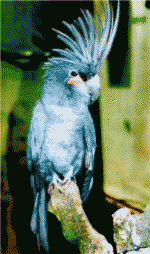
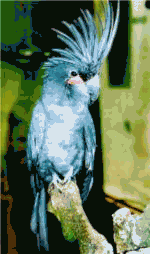
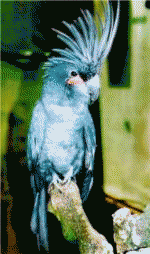
In conclusion let's see how the image size depends on the number of colors, dithering algorithms, and output file format.
|  |  |  |
| --- | --- | --- |
| **15 204 bytes**
**GIF**, 32 colors with Floyd-Steinberg dithering | **14 101 bytes**
**GIF**, 64 colors without dithering | **17 319 bytes**
**GIF**, 64 colors with Floyd-Steinberg dithering |
| **13 182 bytes**
**PNG**, 32 colors with Floyd-Steinberg dithering | **11 451 bytes**
**PNG**, 64 colors without dithering | **15 329 bytes**
**PNG**, 64 colors with Floyd-Steinberg dithering |
## See Also
### Manual
- [Basic Concepts of Color Reduction](https://www.graphicsmill.com/docs/gm5/BasicConceptsofColorReduction.htm.md)
- [Preserving Transparency During Color Reduction](https://www.graphicsmill.com/docs/gm5/PreserveTransparencyInIndexed.htm.md)