---
title: "Quick Start in AJAX Vector Objects"
canonical: https://www.graphicsmill.com/docs/gm5/QuickStartinAjaxVectorObjects.htm
product: "Graphics Mill 5.5 for .NET"
---
This documentation is for the old version. [Go to the latest Graphics Mill docs](https://www.graphicsmill.com/docs/gm/)
# Quick Start in AJAX Vector Objects
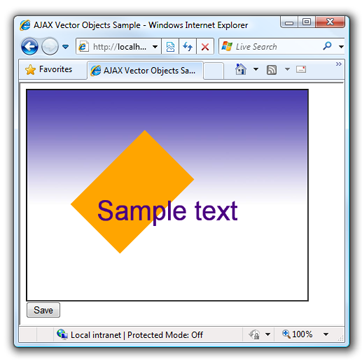
This topic describes how to get started with AJAX Vector Objects module of Aurigma Graphics Mill 5.5 for .NET and provides step-by-step instructions on how to create a simple web application. Suppose this application includes a web page that hosts a special viewport control which displays an editable composite image and a button which saves this image on a server as a bitmap. The composite image consists of three elements, namely a background image, rectangle, and text.
**Prerequisites**
In addition to system requirements applied to Graphics Mill for .NET, ASP.NET AJAX Vector Objects require to have **ASP.NET 2.0 AJAX Extensions 1.0** to be installed on server. You can download it from [http://go.microsoft.com/fwlink/?LinkID=77296↗](http://go.microsoft.com/fwlink/?LinkID=77296).
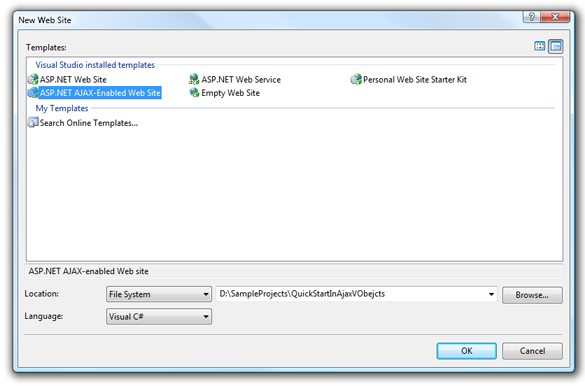
1. In Visual Studio 2005 create new ASP.NET AJAX-Enabled Web Site (menu File -> New Web Site...).
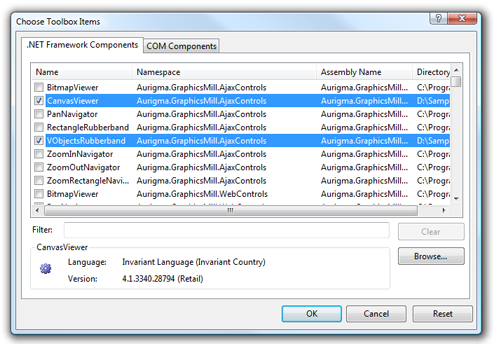
2. Add [CanvasViewer](https://www.graphicsmill.com/docs/gm5/T_Aurigma_GraphicsMill_AjaxControls_CanvasViewer.htm.md) to the toolbox:
1. Right-click on the tab of toolbox where you want to add this control and select Choose Items....
2. Find the CanvasViewer in the .NET Framework Components tab.
3. If you cannot find this component, click Browse... and find the Aurigma.GraphicsMill.AjaxControls.VectorObjects.dll assembly. Then click OK on both Open and Choose Toolbox Items dialogs.
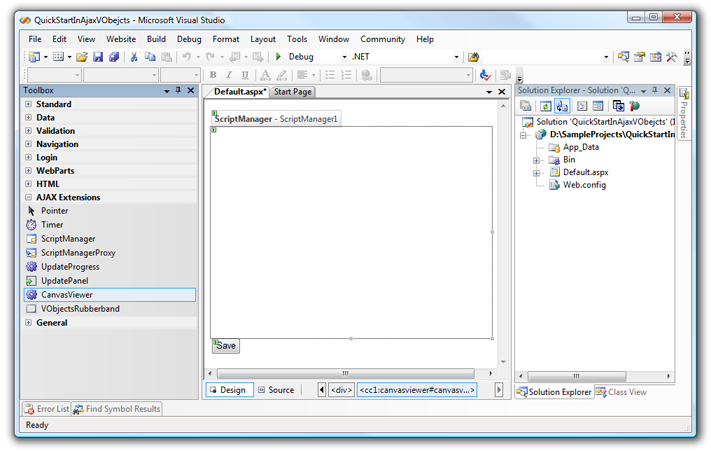
3. Open the Default.aspx page in the Design mode, then drag and drop the CanvasViewer control into the desired position.
4. Drag and drop the Button ASP.NET control and change its name to Save.
5. Edit the control properties:
- The [Width](https://www.graphicsmill.com/docs/gm5/P_Aurigma_GraphicsMill_AjaxControls_BaseViewer_Width.htm.md) and [Height](https://www.graphicsmill.com/docs/gm5/P_Aurigma_GraphicsMill_AjaxControls_BaseViewer_Height.htm.md) properties specify the size of the control area.
- The [ZoomMode](https://www.graphicsmill.com/docs/gm5/P_Aurigma_GraphicsMill_AjaxControls_BaseViewer_ZoomMode.htm.md) property specifies a zooming behavior of the control. Here we set the [BestFit](https://www.graphicsmill.com/docs/gm5/T_Aurigma_GraphicsMill_AjaxControls_ZoomMode.htm.md) value which calculates zoom settings automatically so that entire image could fit the control.
Specify the size of the [Canvas](https://www.graphicsmill.com/docs/gm5/T_Aurigma_GraphicsMill_AjaxControls_VectorObjects_Canvas.htm.md) associated with this control using the [WorkspaceWidth](https://www.graphicsmill.com/docs/gm5/P_Aurigma_GraphicsMill_AjaxControls_VectorObjects_Canvas_WorkspaceWidth.htm.md) and [WorkspaceHeight](https://www.graphicsmill.com/docs/gm5/P_Aurigma_GraphicsMill_AjaxControls_VectorObjects_Canvas_WorkspaceHeight.htm.md) properties.
```aspx-cs
<%@ Page Language="C#" AutoEventWireup="true" CodeBehind="Default.aspx.cs" Inherits="AJAXVectorObjectsCS._Default" %>
<%@ Register Assembly="Aurigma.GraphicsMill.AjaxControls.VectorObjects" Namespace="Aurigma.GraphicsMill.AjaxControls" TagPrefix="cc1" %>
AJAX Vector Objects Sample
```
6. Open the file which contains the code behind of this page (Default.aspx.vb or Default.aspx.cs) and implement the Page\_Load event handler.
```
Protected Sub Page_Load(ByVal sender As Object, ByVal e As System.EventArgs) Handles Me.Load
If Not Page.IsPostBack Then
' Your code
End If
End Sub
```
```csharp
protected void Page_Load(object sender, EventArgs e)
{
if (!Page.IsPostBack)
{
// Your code
}
}
```
According to requirements of our sample application we should display several v-objects. To do it we need to create a layer which will host these objects. So, this code should perform the following steps:
1. Create a [Layer](https://www.graphicsmill.com/docs/gm5/T_Aurigma_GraphicsMill_AjaxControls_VectorObjects_Layer.htm.md) object and add it to the [Canvas.Layers](https://www.graphicsmill.com/docs/gm5/P_Aurigma_GraphicsMill_AjaxControls_VectorObjects_Canvas_Layers.htm.md) collection.
```
Dim layer As New Aurigma.GraphicsMill.AjaxControls.VectorObjects.Layer()
CanvasViewer1.Canvas.Layers().Add(layer)
```
```csharp
Aurigma.GraphicsMill.AjaxControls.VectorObjects.Layer layer = new
Aurigma.GraphicsMill.AjaxControls.VectorObjects.Layer();
CanvasViewer1.Canvas.Layers.Add(layer);
```
2. Create an [ImageVObject](https://www.graphicsmill.com/docs/gm5/T_Aurigma_GraphicsMill_AjaxControls_VectorObjects_ImageVObject.htm.md) from the existing bitmap. This v-object is used to be a background of the designed collage. So, we need to set its size to occupy the Canvas workspace. Additionally, we lock this v-object to make it impossible to change its size or position.
```
Dim bitmap As New Aurigma.GraphicsMill.Bitmap(Server.MapPath("background.png"))
Dim image As New Aurigma.GraphicsMill.AjaxControls.VectorObjects.ImageVObject(bitmap, False)
' Resize this image to fit the Canvas
Dim rect As Aurigma.GraphicsMill.AjaxControls.VectorObjects.Math.RotatedRectangleF = image.Rectangle
rect.Width = CanvasViewer1.Canvas.WorkspaceWidth
rect.Height = CanvasViewer1.Canvas.WorkspaceHeight
rect.Location = New Aurigma.GraphicsMill.AjaxControls.VectorObjects.Math.PointF(0, 0)
image.Rectangle = rect
image.Locked = True
```
```csharp
Aurigma.GraphicsMill.AjaxControls.VectorObjects.ImageVObject image = new
Aurigma.GraphicsMill.AjaxControls.VectorObjects.ImageVObject
(new Aurigma.GraphicsMill.Bitmap(Server.MapPath("background.png")), false);
// Resize this image to fit the Canvas
Aurigma.GraphicsMill.AjaxControls.VectorObjects.Math.RotatedRectangleF rect = image.Rectangle;
rect.Width = CanvasViewer1.Canvas.WorkspaceWidth;
rect.Height = CanvasViewer1.Canvas.WorkspaceHeight;
rect.Location = new Aurigma.GraphicsMill.AjaxControls.VectorObjects.Math.PointF(0, 0);
image.Rectangle = rect;
image.Locked = true;
```
3. Create a [TextVObject](https://www.graphicsmill.com/docs/gm5/T_Aurigma_GraphicsMill_AjaxControls_VectorObjects_TextVObject.htm.md) and specify its text string, color, and font size.
```
Dim text As New Aurigma.GraphicsMill.AjaxControls.VectorObjects.TextVObject()
text.Text = "Sample text"
text.Location = New Aurigma.GraphicsMill.AjaxControls.VectorObjects.Math.PointF(rect.Width / 2, rect.Height / 2)
text.Alignment = Aurigma.GraphicsMill.AjaxControls.VectorObjects.TextAlignment.Center
text.TextColor = System.Drawing.Color.Indigo
text.FontSize = 38
```
```csharp
Aurigma.GraphicsMill.AjaxControls.VectorObjects.TextVObject text = new
Aurigma.GraphicsMill.AjaxControls.VectorObjects.TextVObject();
text.Text = "Sample text";
text.Location = new Aurigma.GraphicsMill.AjaxControls.VectorObjects.Math.PointF(rect.Width / 2, rect.Height / 2);
text.Alignment = Aurigma.GraphicsMill.AjaxControls.VectorObjects.TextAlignment.Center;
text.TextColor = System.Drawing.Color.Indigo;
text.FontSize = 38;
```
4. Create a [RectangleVObject](https://www.graphicsmill.com/docs/gm5/T_Aurigma_GraphicsMill_AjaxControls_VectorObjects_RectangleVObject.htm.md) and specify its color, border, and rotation angle.
```
Dim rectangle As New Aurigma.GraphicsMill.AjaxControls.VectorObjects.RectangleVObject(100, 70, 100, 150)
rectangle.Angle = 45
rectangle.BorderWidth = 0
rectangle.FillColor = System.Drawing.Color.Orange
```
```csharp
Aurigma.GraphicsMill.AjaxControls.VectorObjects.RectangleVObject rectangle = new
Aurigma.GraphicsMill.AjaxControls.VectorObjects.RectangleVObject(100, 70, 100, 150);
rectangle.Angle = 45;
rectangle.BorderWidth = 0;
rectangle.FillColor = System.Drawing.Color.Orange;
```
5. Add these objects to the [Layer.VObjects](https://www.graphicsmill.com/docs/gm5/P_Aurigma_GraphicsMill_AjaxControls_VectorObjects_Layer_VObjects.htm.md) collection in the order they should be placed on this layer.
```
layer.VObjects.Add(image)
layer.VObjects.Add(rectangle)
layer.VObjects.Add(text)
```
```csharp
layer.VObjects.Add(image);
layer.VObjects.Add(rectangle);
layer.VObjects.Add(text);
```
7. Add the Button1\_Click event handler and implement the rendering of result image here:
```
Protected Sub Button1_Click(ByVal sender As Object, ByVal e As EventArgs) Handles Button1.Click
Dim bitmap As Aurigma.GraphicsMill.Bitmap = CanvasViewer1.Canvas.RenderWorkspace(72, _
Aurigma.GraphicsMill.ColorSpace.Rgb)
bitmap.Save(Server.MapPath("tmp.jpg"))
bitmap.Dispose()
End Sub
```
```csharp
protected void Button1_Click(object sender, EventArgs e)
{
using (Aurigma.GraphicsMill.Bitmap bitmap = CanvasViewer1.Canvas.RenderWorkspace(72, Aurigma.GraphicsMill.ColorSpace.Rgb))
{
bitmap.Save(Server.MapPath("tmp.jpg"));
}
}
```
8. Run the application (menu Debug -> Start Without Debugging or Ctrl+F5 shortcut). The page with the CanvasViewer control will appear. Check that the control contains three v-objects (an image, rectangle, and text) and both the rectangle and text v-objects can be rotated and dragged, however, the background image is locked. Also click the Save button and check that content of the control is rendered to a bitmap and saved on a server.
## See Also
### Reference
- [CanvasViewer Class](https://www.graphicsmill.com/docs/gm5/T_Aurigma_GraphicsMill_AjaxControls_CanvasViewer.htm.md)
- [Canvas Class](https://www.graphicsmill.com/docs/gm5/T_Aurigma_GraphicsMill_AjaxControls_VectorObjects_Canvas.htm.md)
- [Layer Class](https://www.graphicsmill.com/docs/gm5/T_Aurigma_GraphicsMill_AjaxControls_VectorObjects_Layer.htm.md)
- [ImageVObject Class](https://www.graphicsmill.com/docs/gm5/T_Aurigma_GraphicsMill_AjaxControls_VectorObjects_ImageVObject.htm.md)
- [TextVObject Class](https://www.graphicsmill.com/docs/gm5/T_Aurigma_GraphicsMill_AjaxControls_VectorObjects_TextVObject.htm.md)
- [RectangleVObject Class](https://www.graphicsmill.com/docs/gm5/T_Aurigma_GraphicsMill_AjaxControls_VectorObjects_RectangleVObject.htm.md)
### Manual
- [Basic Concepts of AJAX Vector Objects](https://www.graphicsmill.com/docs/gm5/BasicConceptsOfAjaxVectorObjects.htm.md)
- [How to Use AJAX Vector Objects](https://www.graphicsmill.com/docs/gm5/HowtoUseAJAXVectorObjects.htm.md)
- [Gift Editor Demo Overview](https://www.graphicsmill.com/docs/gm5/GiftEditorOverview.htm.md)