---
title: "Canvas and CanvasViewer Control"
canonical: https://www.graphicsmill.com/docs/gmwc/canvas-and-canvasviewer-control.htm
archived: true
applies_to:
- product: "Graphics Mill Web Controls"
---
**You’re viewing documentation for an outdated product.** Graphics Mill Web Controls is no longer part of Graphics Mill. For current design editing and rendering tools, see [Design Atoms .NET](https://customerscanvas.com/docs/on-premises/design-atoms-cs/), [Design Atoms JS](https://customerscanvas.com/docs/on-premises/design-atoms-js/), and [Design Editor](https://customerscanvas.com/docs/on-premises/design-editor/).
# Canvas and CanvasViewer Control
**Applies to:** Graphics Mill Web Controls · **Archived documentation**
**Note**
You can refer to the web-to-print solution based on AJAX Vector Objects, [Customer's Canvas](https://www.graphicsmill.com/docs/gmwc/customers-canvas.htm.md "Customer's Canvas"). You can consider it as a ready-to-use editor that you may want to embed into your website or as an example demonstrating how AJAX Vector Objects can be used for your needs.
AJAX Vector Objects provides two centerpiece objects for creating online graphics editors: [Canvas](https://www.graphicsmill.com/docs/gmwc/T_Aurigma_GraphicsMill_AjaxControls_VectorObjects_Canvas.htm.md) and [CanvasViewer](https://www.graphicsmill.com/docs/gmwc/T_Aurigma_GraphicsMill_AjaxControls_CanvasViewer.htm.md). Canvas is an abstraction which stores a worksheet and all its graphics data. Think of Canvas as of a document which you are designing online and are going to print afterwards. For example, if you build a business card editor, Canvas will contain the business card a user is working on. CanvasViewer, in its turn, is an ASP.NET control which is responsible for displaying Canvas in the web browser.
In terms of MVC model, CanvasViewer is the view and Canvas is both the controller and the model. CanvasViewer receives all the user input from the web browser and sends it to Canvas which "knows" how to change content.
## Adding Control to Page
CanvasViewer is embedded into ASP.NET web applications as a regular Web Forms control and does not require installing any additional plug-ins or players like Flash player or Silverlight on the client side. It comes in ` Aurigma.GraphicsMill.AjaxControls.VectorObjects.dll ` assembly located in the Graphics Mill Web Controls installation folder.
**Note**
Before embedding **CanvasViewer**, add the [ScriptManager↗](http://msdn2.microsoft.com/en-us/library/bb344905) control into a web application, otherwise you will get a server error. **ScriptManager** manages client scripts for Microsoft ASP.NET AJAX pages. This enables client script to support both partial-page rendering and loading data dynamically.
The code snippet below represents embedded **CanvasViewer** with the size specified by the Width and Height properties:
```aspx-cs
```
This snippet produces the following view:
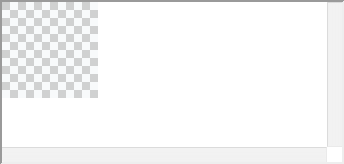
As you can see, **CanvasViewer** displays the worksheet. This worksheet is a default instance of the **Canvas** class created by the **CanvasViewer**. After you read the Canvas paragraph, you will learn how to set canvas size and populate it with graphics data.
## Workspace, Content, Viewport
Before going further with Canvas and CanvasViewer details, we should review three basic concepts:
- *Workspace* is a coordinate system for Canvas. Coordinates are specified in points (72 points = 1 inch) and they are device independent.
- *Content* is a coordinate system for Canvas adapted for displaying in the web browser with a specified zoom level. Coordinates are in pixels.
- *Viewport* is a coordinate system for the content visible in the CanvasViewer control at a specific time. Coordinates are in pixels.
The following picture illustrates the workspace, content, viewport, and how they are related:
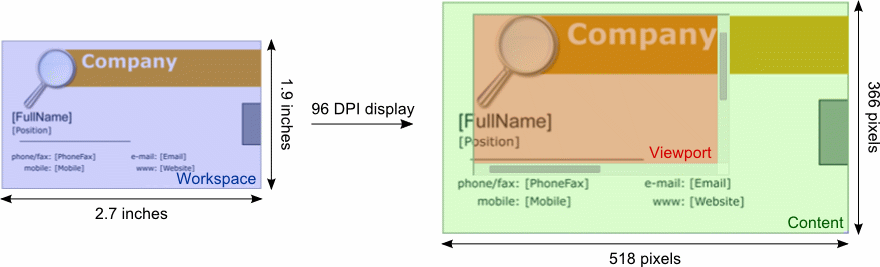
CanvasViewer control displays the viewport at every moment of time. When scrolling the design inside CanvasViewer, the viewport changes its position on the content. Viewport does not include CanvasViewer frame and scrollbars.
## Canvas
As we discussed before, Canvas is the graphics document represented in device independent coordinates. Its content is defined by layers and objects. To learn about layers and objects in more detail, read the [Layers and Objects](https://www.graphicsmill.com/docs/gmwc/layers-and-objects-api.htm.md) article. There are three types of objects, namely, raster, vector, and text. All your designs loaded in AJAX Vector Objects are formed using them. Layers, in their turn, are invisible as they exist to organize objects in groups. All manipulations are made on objects and can be performed in two ways: interactively using a touch screen/mouse device or programmatically via an API. The client and server APIs provide very similar features. Thus, if you create an object using the server API, you can easily manipulate it on the client side.
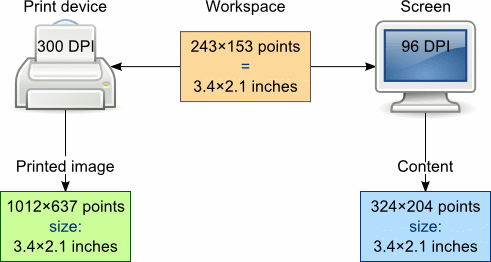
When you set up a Canvas instance, you can specify a workspace size which is set in points. Unlike pixels, points always have the same size. If you measure an object on the different outputs with the ruler, its size will be the same, equal to the value in points. Therefore, the workspace coordinate system is device independent. For example, when you set the Canvas size in points and create a design on it and the design is displayed on your screen (usually 96 DPI), the number of pixels will be different from the same design printed on a 300 DPI printer. However, if you measure both displayed and printed designs with a ruler, the values will be the same.
Let us see how the coordinate systems of the workspace, content, and image rendered to print-ready output are related. The following snippet shows how to specify Canvas with 243 x 153 pt workspace:
```aspx-cs
```
After launching, the application AJAX Vector Objects translates the workspace to the content depending on the screen resolution (96 DPI in our case) and a current zoom. As we specify 100% zoom, the content size is equal to the workspace (3.375 x 2.125 inches or 324 x 204 pixels). When you prepare the Canvas content for printing on a 300 DPI printer, you will get 3.375 x 2.125 inches too, but it will have 1012 x 637 pixel size. To learn more about rendering read the [Saving and Rendering Canvas](https://www.graphicsmill.com/docs/gmwc/saving-and-rendering-canvas.htm.md) article. The following picture illustrates this:
## CanvasViewer
As we discussed before, CanvasViewer is a control designed for displaying Canvas on the webpage. When you set CanvasViewer size, you specify width/height of the ASP.NET control as well as indirectly specify viewport size, which is a part of the control.
The viewport size never changes while a user is editing the Canvas content in the browser, whereas the content size can change along with the zoom level: zoom-in makes the content larger, zoom-out - smaller. You can get the current content size via the [ContentHeight](https://www.graphicsmill.com/docs/gmwc/P_Aurigma_GraphicsMill_AjaxControls_CanvasViewer_ContentHeight.htm.md) and [ContentWidth](https://www.graphicsmill.com/docs/gmwc/P_Aurigma_GraphicsMill_AjaxControls_CanvasViewer_ContentWidth.htm.md) properties.
The [Zoom](https://www.graphicsmill.com/docs/gmwc/P_Aurigma_GraphicsMill_AjaxControls_CanvasViewer_Zoom.htm.md) property allows you to change the zoom level, which should be between [MinZoom](https://www.graphicsmill.com/docs/gmwc/P_Aurigma_GraphicsMill_AjaxControls_BaseViewer_MinZoom.htm.md) and [MaxZoom](https://www.graphicsmill.com/docs/gmwc/P_Aurigma_GraphicsMill_AjaxControls_BaseViewer_MaxZoom.htm.md) values. For example, let us set 500% zoom in CanvasViewer:
```csharp
CanvasViewer1.Zoom = Math.Min(5.0f, CanvasViewer1.MaxZoom);
```
```
var canvasViewer = $find("<%= CanvasViewer1.ClientID %>");
canvasViewer.set_zoom(Math.min(5.0, canvasViewer.get_maxZoom()));
```
If you do not want to calculate the optimal zoom value for displaying Canvas in CanvasViewer, you can use the [ZoomMode](https://www.graphicsmill.com/docs/gmwc/P_Aurigma_GraphicsMill_AjaxControls_CanvasViewer_ZoomMode.htm.md) enumeration:
| Member Name | Description |
| --- | --- |
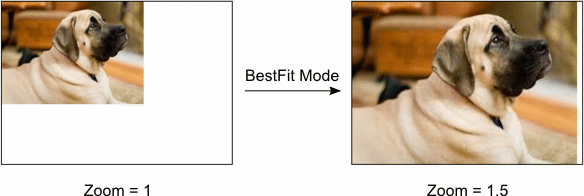
| **BestFit** | the content is zoomed in/out to fit the viewport. |
| **BestFitShrinkOnly** | the content is zoomed out to fit the viewport. If the content displayed with 100% zoom is smaller than the viewport, it does not zoom in. |
| **FitToHeight** | the content is zoomed in/out to make its height equal to the viewport one. |
| **FitToHeightShrinkOnly** | the content is zoomed out to make it no higher than the viewport. If the content height displayed with 100% zoom is smaller than the viewport one, it does not zoom in. |
| **FitToWidth** | the content is zoomed in/out to make its width equal to the viewport one. |
| **FitToWidthShrinkOnly** | the content is zoomed out to make it no wider than the viewport. If the content width displayed with 100% zoom is smaller than the viewport one, it does not zoom in. |
| **None** | does not change the zoom level automatically. |
| **ZoomControl** | changes the viewport size to fit the content displayed with the current zoom level. |
**Note**
If you specify **ZoomMode** and then set the **Zoom** property, **ZoomMode** will be set to **None**.
Here is how to specify **ZoomMode** to **BestFit**. The following picture shows how **BestFit** mode works:
Another way to change a visible area of the content is to scroll the viewport. If the content is larger than the viewport, a user can scroll the content to see more of Canvas using the scroll bars that appear on CanvasViewer. When you scroll Canvas, this means that you move the viewport on the content. The current position of the viewport is specified by the [ScrollingPosition](https://www.graphicsmill.com/docs/gmwc/P_Aurigma_GraphicsMill_AjaxControls_BaseViewer_ScrollingPosition.htm.md) property which defines the slider's position. The vertical slider can be moved in the range from 0 to (**ContentHeight** - [Height](https://www.graphicsmill.com/docs/gmwc/P_Aurigma_GraphicsMill_AjaxControls_BaseViewer_Height.htm.md) + [ScrollBarWidth](https://www.graphicsmill.com/docs/gmwc/P_Aurigma_GraphicsMill_AjaxControls_BaseViewer_ScrollBarWidth.htm.md)), horizontal - from 0 to (**ContentWidth** - [Width](https://www.graphicsmill.com/docs/gmwc/P_Aurigma_GraphicsMill_AjaxControls_BaseViewer_Width.htm.md) + **ScrollBarWidth**). The following code moves the viewport to the right bottom corner of the content:
```csharp
CanvasViewer1.ScrollingPosition = new System.Drawing.Point(
CanvasViewer1.ContentWidth - (int)CanvasViewer1.Width.Value + CanvasViewer1.ScrollBarWidth,
CanvasViewer1.ContentHeight - (int)CanvasViewer1.Height.Value + CanvasViewer1.ScrollBarWidth);
```
```
var canvasViewer = $find("<%= CanvasViewer1.ClientID %>");
canvasViewer.set_scrollingPosition(new Sys.UI.Point(
canvasViewer.get_contentWidth() - canvasViewer.get_width() + canvasViewer.get_scrollBarWidth(),
canvasViewer.get_contentHeight() - canvasViewer.get_height() + canvasViewer.get_scrollBarWidth()));
```
As a result, after launching the application, you will see the right bottom corner of the design instead of the upper left displayed by default.
The CanvasViewer always displays the scroll bars by default regardless of the content size but you can change this behavior. The following code snippet hides scroll bars if the content fits the viewport:
```csharp
CanvasViewer1.ScrollBarsStyle = Aurigma.GraphicsMill.AjaxControls.ScrollBarsStyle.Auto;
```
Notice, that you can specify the scroll bar style only in the server API.
On mobile devices, zooming and scrolling can be performed using gestures: the pinch and spread gestures zoom the content in/out, the two fingers scroll gesture scrolls the content:
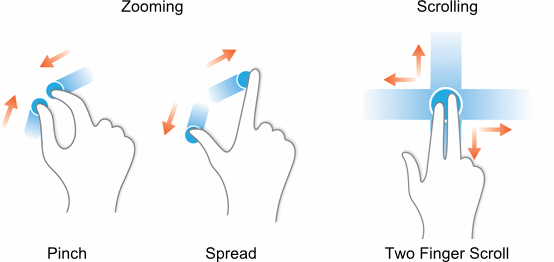
These gestures work by default for all platforms supported by Graphics Mill Web Controls, namely: Android, iOS, and Windows RT.
## See Also
### Reference
- [Canvas Class](https://www.graphicsmill.com/docs/gmwc/T_Aurigma_GraphicsMill_AjaxControls_VectorObjects_Canvas.htm.md)
- [CanvasViewer Class](https://www.graphicsmill.com/docs/gmwc/T_Aurigma_GraphicsMill_AjaxControls_CanvasViewer.htm.md)
- [ContentHeight Property](https://www.graphicsmill.com/docs/gmwc/P_Aurigma_GraphicsMill_AjaxControls_CanvasViewer_ContentHeight.htm.md)
- [ContentWidth Property](https://www.graphicsmill.com/docs/gmwc/P_Aurigma_GraphicsMill_AjaxControls_CanvasViewer_ContentWidth.htm.md)
- [Zoom Property](https://www.graphicsmill.com/docs/gmwc/P_Aurigma_GraphicsMill_AjaxControls_CanvasViewer_Zoom.htm.md)
- [ZoomMode Property](https://www.graphicsmill.com/docs/gmwc/P_Aurigma_GraphicsMill_AjaxControls_CanvasViewer_ZoomMode.htm.md)
- [ScrollingPosition Property](https://www.graphicsmill.com/docs/gmwc/P_Aurigma_GraphicsMill_AjaxControls_BaseViewer_ScrollingPosition.htm.md)
- [ScrollBarWidth Property](https://www.graphicsmill.com/docs/gmwc/P_Aurigma_GraphicsMill_AjaxControls_BaseViewer_ScrollBarWidth.htm.md)
### Manual
- [Layers and Objects](https://www.graphicsmill.com/docs/gmwc/layers-and-objects-api.htm.md)
### Other
- [ScriptManager Class↗](http://msdn2.microsoft.com/en-us/library/bb344905)
- [Saving and Rendering Canvas](https://www.graphicsmill.com/docs/gmwc/saving-and-rendering-canvas.htm.md)