---
title: "Configuring and Troubleshooting"
canonical: https://www.graphicsmill.com/docs/gmwc/configuring-and-troubleshooting.htm
archived: true
applies_to:
- product: "Graphics Mill Web Controls"
---
**You’re viewing documentation for an outdated product.** Graphics Mill Web Controls is no longer part of Graphics Mill. For current design editing and rendering tools, see [Design Atoms .NET](https://customerscanvas.com/docs/on-premises/design-atoms-cs/), [Design Atoms JS](https://customerscanvas.com/docs/on-premises/design-atoms-js/), and [Design Editor](https://customerscanvas.com/docs/on-premises/design-editor/).
# Configuring and Troubleshooting
**Applies to:** Graphics Mill Web Controls · **Archived documentation**
**Note**
You can refer to the web-to-print solution based on AJAX Vector Objects, [Customer's Canvas](https://www.graphicsmill.com/docs/gmwc/customers-canvas.htm.md "Customer's Canvas"). You can consider it as a ready-to-use editor that you may want to embed into your website or as an example demonstrating how AJAX Vector Objects can be used for your needs.
This topic describes how to configure AJAX Vector Objects to store temporary files in a cache.
It also describes different approaches for determining issues, which may occur when your application works on both the server and client sides.
## Working with Cache
When you launch an application using AJAX Vector Objects, it automatically creates a cache that preserves temporary files. By default, the cache is located in `\App_Data\FileCache` of your web application. However, you can configure the cache, changing its path and the time the files are stored. If you need to specify cache settings, create a section inside the **<configSections>** tag of the `web.config` file and specify parameters as the following snippet shows:
```aspx-cs
```
You can see from the snippet that the **RootPath** key allows you to change the path of the cache. Note, that the value takes the absolute path as a parameter. The **MaxSize** parameter limits the maximum size of the cache in bytes. This value is 10GB by default. There are two ways how AJAX Vector Objects can trigger the cache cleanup. First, you can specify the **CleanUpInterval** parameter defining an interval between cleanup runs, which is `1800` seconds by default. Also, you can trigger the cache utilization, combining the **UtilizationTarget** and **MaxUtilizationThreshold** parameters. When the cache size reaches **MaxUtilizationThreshold**, which is 95% by default, then the cleanup process starts. When the cleanup algorithm reaches the utilization level, the cleanup process stops. By default, **UtilizationTarget** is `70`.
## Configuring a Font Substitution
Your users may sometimes open PSD templates with fonts that are missing on your server. AJAX Vector Objects allows you to enable a font substitution feature for such cases through the **FontSubstitutionEnabled** parameter. You can configure this feature inside the **<appSettings>** section of the `web.config` file.
```aspx-cs
...
```
If **FontSubstitutionEnabled** is `False`, then it triggers the **AdvancedDrawing.FontFallbackException** when a font referenced in a template is not found on the server. If this parameter is `True`, then it substitutes the font. **SubstitutionFontPostScriptName** allows you to define the PostScript name of the font to substitute a missing font with. By default, the value of this parameter corresponds to **DefaultFontPostScriptName**, which is the PostScript font name for any new text. By default, **DefaultFontPostScriptName** is `ArialMT`.
The **FontSubstitutionEnabled** parameter is ignored for auto-scaled text. If it meets an unknown font in a template, then it always throws the **AdvancedDrawing.FontFallbackException**.
## Troubleshooting
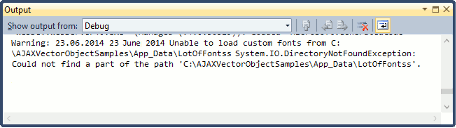
AJAX Vector Objects provides flexible ways for determining and solving problems occurring when your application works. If an error occurs, AJAX Vector Objects writes a message describing the error to the [System.Diagnostics.Debug↗](http://msdn2.microsoft.com/en-us/library/6x31ezs1) by default. This means that you can see all the errors in the **Output** window in Visual Studio. For example, if you specify an incorrect path to fonts, you will see the following warning:
If you do not want to use **Debug** for debugging errors in your application, you can create your own logger. AJAX Vector Objects allows you to redirect all error messages to your logger. All you need to do is set the [Configuration.LoggerFactoryMethod](https://www.graphicsmill.com/docs/gmwc/P_Aurigma_GraphicsMill_AjaxControls_VectorObjects_Configuration_LoggerFactoryMethod.htm.md) property. The following snippets demonstrate how to work with **LoggerFactoryMethod**:
```csharp
Aurigma.GraphicsMill.AjaxControls.VectorObjects.Logger.ILogger logger =
Aurigma.GraphicsMill.AjaxControls.VectorObjects.Logger.DotNetDebugLogger.Instance;
Aurigma.GraphicsMill.AjaxControls.VectorObjects.Configuration.LoggerFactoryMethod = () =>logger;
```
**Note**
The logger you create needs to implement the [ILogger](https://www.graphicsmill.com/docs/gmwc/T_Aurigma_GraphicsMill_AjaxControls_VectorObjects_Logger_ILogger.htm.md) interface and its **ILogger.Trace(System.String)**, **ILogger.Warning(System.String)**, and **ILogger.Error(System.String)** methods.
### Client Scripts Debugging
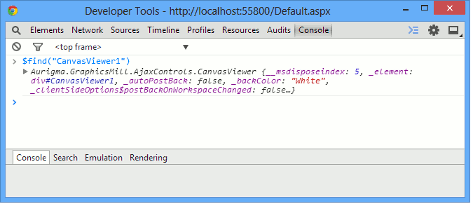
If you need to debug your application on the client side, you can use **JavaScript console**. After you open JavaScript console, you can find CanvasViewer by specifying the following command:
**$find("<CanvasViewer\_id>")**
For instance, to get CanvasViewer created in the [Your First Application with AJAX Vector Objects](https://www.graphicsmill.com/docs/gmwc/your-first-application-with-ajax-vector-objects.htm.md) article, we need to specify this command, as the following image illustrates:
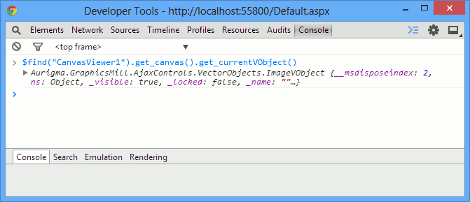
After getting CanvasViewer, you can perform the same commands in JavaScript console as on the client side. For example, the following command returns a current object on Canvas:
## See Also
### Reference
- [ILogger Class](https://www.graphicsmill.com/docs/gmwc/T_Aurigma_GraphicsMill_AjaxControls_VectorObjects_Logger_ILogger.htm.md)
- [LoggerFactoryMethod Property](https://www.graphicsmill.com/docs/gmwc/P_Aurigma_GraphicsMill_AjaxControls_VectorObjects_Configuration_LoggerFactoryMethod.htm.md)
### Manual
- [Your First Application with AJAX Vector Objects](https://www.graphicsmill.com/docs/gmwc/your-first-application-with-ajax-vector-objects.htm.md)
- [A Turnkey AJAX Vector Objects Solution](https://www.graphicsmill.com/docs/gmwc/customers-canvas.htm.md)
### Other
- [System.Diagnostics.Debug Class↗](http://msdn2.microsoft.com/en-us/library/6x31ezs1)