---
title: "Working with Objects"
canonical: https://www.graphicsmill.com/docs/gmwc/working-with-objects.htm
product: "Graphics Mill Web Controls"
---
**You’re viewing documentation for an outdated product.** The Graphics Mill Web Controls library has been removed from Graphics Mill and is now part of the Customers Canvas product line, where it is available as a set of APIs for [Design Atoms](https://customerscanvas.com/docs/on-premises/) and as [Design Editor](https://customerscanvas.com/docs/on-premises/).
# Working with Objects
**Note**
You can refer to the web-to-print solution based on AJAX Vector Objects, [Customer's Canvas](https://www.graphicsmill.com/docs/gmwc/customers-canvas.htm.md "Customer's Canvas"). You can consider it as a ready-to-use editor that you may want to embed into your website or as an example demonstrating how AJAX Vector Objects can be used for your needs.
AJAX Vector Objects provides different kinds of graphics objects discussed in the [Layers and Objects](https://www.graphicsmill.com/docs/gmwc/layers-and-objects-api.htm.md) topic. This article explains how to work with the following objects using specific API:
- ImageVObject
- Text
- PlainTextVObject
- BoundedTextVObject
- CurvedTextVObject
- Text Settings
- PlaceholderVObject
- SVG
## ImageVObject
[ImageVObject](https://www.graphicsmill.com/docs/gmwc/T_Aurigma_GraphicsMill_AjaxControls_VectorObjects_ImageVObject.htm.md) represents an image on Canvas. The following snippets demonstrate how to create **ImageVObject** on the server and client sides:
```aspx-cs
var image = new ImageVObject(Server.MapPath("input.png"));
image.Rectangle = new RotatedRectangleF(250.0f, 140.0f, 270.0f, 270.0f, 0.0f);
CanvasViewer1.Canvas.Layers[0].VObjects.Add(image);
```
```
var image = new Aurigma.GraphicsMill.AjaxControls.VectorObjects.ImageVObject("input.png");
image.set_rectangle(new Aurigma.GraphicsMill.AjaxControls.VectorObjects.Math.RotatedRectangleF(250, 140, 270, 270, 0));
canvasViewer.get_canvas().get_layers().get_item(0).get_vObjects().add(image);
```
Both snippets load a bitmap and then define the location of the object via the [Rectangle](https://www.graphicsmill.com/docs/gmwc/P_Aurigma_GraphicsMill_AjaxControls_VectorObjects_BaseRectangleVObject_Rectangle.htm.md) property specifying coordinates of the object center, width, height, and angle. On the server side, AJAX Vector Objects provides different **ImageVObject** constructors that allow you to load images from different sources such as a **GraphicsMill.Bitmap**, [FileInfo↗](http://msdn2.microsoft.com/en-us/library/akth6b1k), stream, file in FileStorage, or remote URL. The client side API also allows you to load images from a URL. Let us see how to perform this on both sides:
```aspx-cs
var image = new ImageVObject(new Uri("http://upload.wikimedia.org/wikipedia/commons/0/0e/Gelinotte.jpg"));
```
```
var image = new Aurigma.GraphicsMill.AjaxControls.VectorObjects.ImageVObject("http://upload.wikimedia.org/wikipedia/commons/0/0e/Gelinotte.jpg");
```
After creating the object, you can easily replace the source image with another. For this purpose, AJAX Vector Objects provides two methods on the server side - **ImageVObject.LoadImage()** and [ImageVObject.LoadImageFromRemoteUrl(Uri, Boolean, Boolean)](https://www.graphicsmill.com/docs/gmwc/M_Aurigma_GraphicsMill_AjaxControls_VectorObjects_ImageVObject_LoadImageFromRemoteUrl_3_0b37c1e0.htm.md) loading new image from local or remote resources, respectively. Whereas, the client API has only the **LoadImage** method for loading an image.
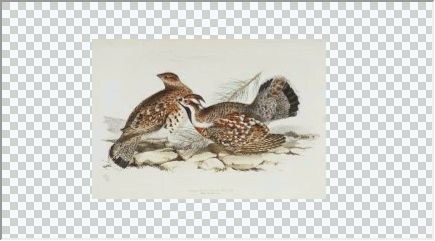
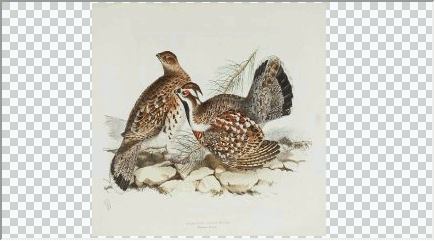
The object size on Canvas depends on the **Rectangle** property defining **RectangleVObject.Location**, **RectangleVObject.Width**, and **Height**. Additionally, if you pass `true` as the **actualSize** and **saveAspectRatio** arguments in the method for loading an image to **ImageVObject**, this affects the object size too. The **actualSize** value allows you to choose whether the source image should preserve its original size or be inscribed into specified rectangle. Also, if you want to preserve the aspect ratio of the original image, you can do it by passing `true` in the **saveAspectRatio** argument. Note that the image always preserves the aspect ratio based on **RectangleVObject.Width**.
In addition, the method for loading an image to **ImageVObject** has the **downloadToServerCache** argument which forces AJAX Vector Objects to download the image from an external URL to local storage.
The following snippets demonstrate how to load an image and preserve its aspect ratio:
```aspx-cs
image.LoadImageFromRemoteUrl(new Uri("http://upload.wikimedia.org/wikipedia/commons/0/0e/Gelinotte.jpg"), false, true);
```
```
image.loadImage("http://upload.wikimedia.org/wikipedia/commons/0/0e/Gelinotte.jpg",
{ actualSize: false, saveAspectRatio: true, downloadToServerCache: true });
```
The following image demonstrates the result:
If you specify both **actualSize** and **saveAspectRatio** to `false`, you will get the following result:
**ImageVObject** does not allow the users to crop loaded images on Canvas. However, AJAX Vector Objects provides the [PlaceholderVObject](https://www.graphicsmill.com/docs/gmwc/T_Aurigma_GraphicsMill_AjaxControls_VectorObjects_PlaceholderVObject.htm.md) class that does allow this. We will discuss how to work with **PlaceholderVObject** below.
## Text
AJAX Vector Objects provides three different types of objects, namely, plain, bounded, and curved texts. The following image illustrates how each text type looks:

You can use both the plain and curved texts for headlining or labeling objects on a design, whereas the bounded text is designed to draw multiline text inside a rectangle, for instance if you need to draw a text paragraph on Canvas. Let us discuss how to work with these types of text on Canvas.
### PlainTextVObject
[PlainTextVObject](https://www.graphicsmill.com/docs/gmwc/T_Aurigma_GraphicsMill_AjaxControls_VectorObjects_PlainTextVObject.htm.md) represents the plain text on Canvas. When you create the object, you should specify text that will be displayed on Canvas, the coordinates of the object's base point (this point can be located on the left, center, or right side of the object depending on alignment as shown below), alignment, font name, and font size:
```aspx-cs
var plainText = new PlainTextVObject ("AJAX Vector Objects",
new System.Drawing.PointF(200.0f, 50.0f), TextAlignment.Center, "Arial", 20.0f);
CanvasViewer1.Canvas.Layers[0].VObjects.Add(plainText);
```
```
var plainText = new Aurigma.GraphicsMill.AjaxControls.VectorObjects.PlainTextVObject(new Aurigma.GraphicsMill.AjaxControls.VectorObjects.Math.PointF(200, 50),
Aurigma.GraphicsMill.AjaxControls.VectorObjects.TextAlignment.Center, "Arial", 20);
plainText.set_text("AJAX Vector Objects");
$find("<%= CanvasViewer1.ClientID %>").get_canvas().get_layers().get_item(0).get_vObjects().add(plainText);
```
If you specify `\n` symbols in the text, it will be divided by lines. However, unlike the text in [BoundedTextVObject](https://www.graphicsmill.com/docs/gmwc/T_Aurigma_GraphicsMill_AjaxControls_VectorObjects_BoundedTextVObject.htm.md) (see the next subparagraph), you cannot limit the width of the text in **PlainTextVObject**.
### BoundedTextVObject
**BoundedTextVObject** represents the bounded text on Canvas. This object allows you to draw a text inside the specified rectangle, wherein the text will be divided by lines, if it is longer than the rectangle's width, or clipped, if the text does not fit vertically the rectangle. To create the object, you need to specify a string that will be displayed inside the rectangle, location of the rectangle on the workspace, font name, and font size. By default, BoundedTextVObject aligns the text along the left edge, but you can also change it:
```aspx-cs
var boundedText = new BoundedTextVObject("AJAX Vector Objects",
new System.Drawing.RectangleF(200.0f, 100.0f, 150.0f, 100.0f), "Arial", 20.0f);
boundedText.Alignment = TextAlignment.Center;
CanvasViewer1.Canvas.Layers[0].VObjects.Add(boundedText);
```
```
var boundedText = new Aurigma.GraphicsMill.AjaxControls.VectorObjects.BoundedTextVObject();
boundedText.set_text("AJAX Vector Objects");
boundedText.set_rectangle(new Aurigma.GraphicsMill.AjaxControls.VectorObjects.Math.RotatedRectangleF(200, 100, 150, 100));
boundedText.set_fontName("Arial");
boundedText.set_fontSize(20);
boundedText.set_alignment(Aurigma.GraphicsMill.AjaxControls.VectorObjects.TextAlignment.Center);
$find("<%= CanvasViewer1.ClientID %>").get_canvas().get_layers().get_item(0).get_vObjects().add(boundedText);
```
### CurvedTextVObject
[CurvedTextVObject](https://www.graphicsmill.com/docs/gmwc/T_Aurigma_GraphicsMill_AjaxControls_VectorObjects_CurvedTextVObject.htm.md) represents the curved text on Canvas. This object draws a text on a curve specified as a vector path. Let us examine how to set such [Path](https://www.graphicsmill.com/docs/gmwc/T_Aurigma_GraphicsMill_AjaxControls_VectorObjects_Math_Path.htm.md) in AJAX Vector Objects.
First, we need to specify the first point, from which the curve will originate, using the [Path.MoveTo(PointF)](https://www.graphicsmill.com/docs/gmwc/M_Aurigma_GraphicsMill_AjaxControls_VectorObjects_Math_Path_MoveTo_1_f483f6f9.htm.md) method. After this, we can draw the curve. AJAX Vector Objects provides several types of functions specifying curve segments:
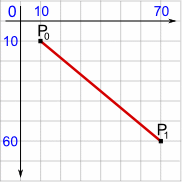
- A straight line specified via the [Path.LineTo(Single, Single)](https://www.graphicsmill.com/docs/gmwc/M_Aurigma_GraphicsMill_AjaxControls_VectorObjects_Math_Path_LineTo_2_427c5821.htm.md) method. The method draws a line between the last point in the path and the new one:
```aspx-cs
var path = new Path();
path.MoveTo(10, 10);
path.LineTo(new PointF(70, 60));
```
```
var path = new Aurigma.GraphicsMill.AjaxControls.VectorObjects.Math.Path();
path.moveTo(10, 10);
path.lineTo(70, 60);
```
This snippet creates the curve, on which the text will be located, illustrated on the following graph:
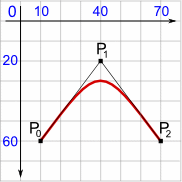
- A quadratic Bezier curve specified via the [Path.QuadraticTo(PointF, PointF)](https://www.graphicsmill.com/docs/gmwc/M_Aurigma_GraphicsMill_AjaxControls_VectorObjects_Math_Path_QuadraticTo_2_4e16d801.htm.md) method. The method draws a curve that starts at point P**0** and arrives at point P**2** coming from the direction of point P**1**. Thus, to create a quadratic Bezier in AJAX Vector Objects you need to specify points P**1** and P**2**, while point P**0** is the last point in the path:
```aspx-cs
path.MoveTo(new PointF(10, 60));
path.QuadraticTo(40, 20, 70, 60);
```
```
path.moveTo(10, 60);
path.quadraticTo(40, 20, 70, 60);
```
The following graph illustrates the curve drawn by these snippets:
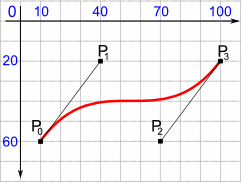
- A cubic Bezier curve specified via the [Path.CubicTo(PointF, PointF, PointF)](https://www.graphicsmill.com/docs/gmwc/M_Aurigma_GraphicsMill_AjaxControls_VectorObjects_Math_Path_CubicTo_3_4e4df779.htm.md) method. The method draws a curve that starts at point P**0** and arrives at point P**3** coming from the direction of points P**1** and P**2**. As point P**0** is the last point in the path, the method accepts the other three points as arguments:
```aspx-cs
path.MoveTo(10, 60);
path.CubicTo(40, 20, 70, 60, 100, 20);
```
```
path.moveTo(10, 60);
path.cubicTo(40, 20, 70, 60, 100, 20);
```
The following graph illustrates the curve:
To create **CurvedTextVObject**, you need to specify a string that will be displayed on Canvas, the path, font name, and font size:
```aspx-cs
var curvedText = new CurvedTextVObject("AJAX Vector Objects", path, "Arial", 28);
CanvasViewer1.Canvas.Layers[0].VObjects.Add(curvedText);
```
```
var curvedText = new Aurigma.GraphicsMill.AjaxControls.VectorObjects.CurvedTextVObject();
curvedText.set_text("AJAX Vector Objects");
curvedText.set_path(path);
curvedText.set_fontName("Arial");
curvedText.set_fontSize(20);
$find("<%= CanvasViewer1.ClientID %>").get_canvas().get_layers().get_item(0).get_vObjects().add(curvedText);
```
By default, if the text is bigger that the specified curve, it is cropped. However, if you set the [FitToPath](https://www.graphicsmill.com/docs/gmwc/P_Aurigma_GraphicsMill_AjaxControls_VectorObjects_CurvedTextVObject_FitToPath.htm.md) property to `true`, the font size will be automatically reduced so that the entire text will fit the curve.
### Text Settings
All observed text objects have the same parameters specifying text settings. Let us examine some of them:
- [TextColor](https://www.graphicsmill.com/docs/gmwc/P_Aurigma_GraphicsMill_AjaxControls_VectorObjects_BaseTextVObject_TextColor.htm.md) sets the color of the text displayed on Canvas.
- [Angle](https://www.graphicsmill.com/docs/gmwc/P_Aurigma_GraphicsMill_AjaxControls_VectorObjects_BaseRectangleVObject_Angle.htm.md) rotates the text object at the specified angle in degrees.
- **BaseTextVObject.FontSize** sets the size of the font used to display text in objects.
- **BaseTextVObject.FontName** sets the font for text. This method accepts varied standard fonts. However, if you need to use a custom font that is not registered on the web server, you can specify the directory containing the appropriate font in the `Web.config` file of your application:
```csharp
```
After this, you can simply pass the name of new font to the property:
```aspx-cs
var text = new PlainTextVObject();
text.Font.PostScriptName = "Adventure";
```
```
var text = new Aurigma.GraphicsMill.AjaxControls.VectorObjects.PlainTextVObject();
text.set_fontName("Adventure");
```
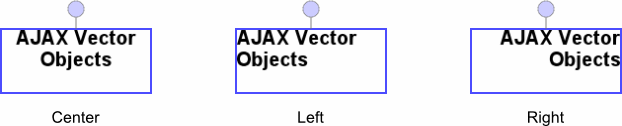
- [Alignment](https://www.graphicsmill.com/docs/gmwc/P_Aurigma_GraphicsMill_AjaxControls_VectorObjects_BaseTextVObject_Alignment.htm.md) specifies text alignments. The client side API provides three types of alignment that can be specified by either words or numerical formats:
- The **Center** or **1** value aligns text along the center,
- The **Left** or **0** value aligns text along the left edge,
- The **Right** or **2** value aligns text along the right edge.
Remember that the server API accepts only words. On the picture below, you can see how alignment affects the text in BoundedTextVObject:
The following snippets illustrate the usage of all these settings:
```aspx-cs
text.TextColor = System.Drawing.Color.DarkGreen;
text.Angle = 45;
text.Font.Size = 26f;
text.Font.PostScriptName = "Times New Roman";
text.Alignment = TextAlignment.Center;
```
```
text.set_textColor("#006400");
text.set_angle(30);
text.set_fontSize(18);
text.set_fontName("Times New Roman");
text.set_alignment(1);
```
## PlaceholderVObject
In the previous paragraphs, we learned how to create image and text objects on Canvas. Here we discuss how to crop an image or text.
AJAX Vector Objects provides **PlaceholderVObject** that allows you to specify a rectangle over an image or text and crop it. This object consists of two parts - crop bounds with a specified size and a content. The content can be loaded from **ImageVObject**, **PlainTextVObject**, **BoundedTextVObject**, or **CurvedTextVObject**. The following snippets illustrate how to create **PlaceholderVObject** that crops **ImageVObject**:
```aspx-cs
var image = new ImageVObject(Server.MapPath("input.png"));
var imageRectangle = new RotatedRectangleF(250.0f, 140.0f, 270.0f, 270.0f, 0.0f);
image.Rectangle = imageRectangle;
var placeholder = new PlaceholderVObject(image)
{
Width = 200,
Height = 200
};
CanvasViewer1.Canvas.Layers[0].VObjects.Add(placeholder);
```
```
var image = new Aurigma.GraphicsMill.AjaxControls.VectorObjects.ImageVObject("input.png");
image.set_rectangle(new Aurigma.GraphicsMill.AjaxControls.VectorObjects.Math.RotatedRectangleF(150, 140, 270, 270));
var placeholder = new Aurigma.GraphicsMill.AjaxControls.VectorObjects.PlaceholderVObject(
new Aurigma.GraphicsMill.AjaxControls.VectorObjects.Math.RotatedRectangleF(200, 200, 200, 200));
placeholder.set_content(image);
canvasViewer.get_canvas().get_layers().get_item(0).get_vObjects().add(placeholder);
```
After launching these snippets you will get the same results:
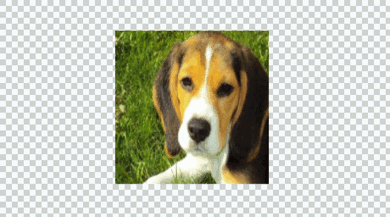
At first glance, there is no difference between **PlaceholderVObject** and **ImageVObject**. However, once you select the created placeholder as the current object, you will get the following view:
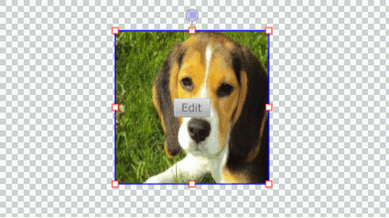
If you click the **Edit** button in the center of the placeholder, you are able move the content, but the crop bounds remain fixed. This allows you change the part of the content that should be cropped:
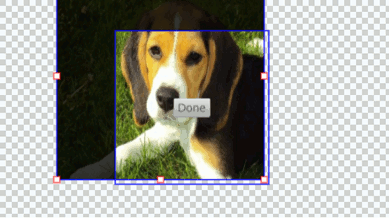
After clicking the **Done** button, the changes will be applied.
**Note**
You can perform the same operations on **PlaceholderVObject** as on image and text objects, such as rotating, moving, and scaling.
You can switch **PlaceholderVObject** to the mode allowing a user to select what part of the content to crop out, in a programmatic way specifying the **set\_editing** property to `true` on the client side.
In addition to object permissions described in the [Layers and Objects](https://www.graphicsmill.com/docs/gmwc/layers-and-objects-api.htm.md) article, **PlaceholderVObject** provides an extended list of members of the [Permission](https://www.graphicsmill.com/docs/gmwc/T_Aurigma_GraphicsMill_AjaxControls_VectorObjects_Permission.htm.md) class that allows you to forbid a user from performing specific actions:
| Member Name | Description |
| --- | --- |
| [AllowEditContent](https://www.graphicsmill.com/docs/gmwc/P_Aurigma_GraphicsMill_AjaxControls_VectorObjects_IPlaceholderPermission_AllowEditContent.htm.md) | Determines whether the users can switch **PlaceholderVObject** to the mode, where they select which part of the content to crop out. If this property is set to `false`, it ignores the value specified in the **set\_editing** property. |
| [ShowEditButton](https://www.graphicsmill.com/docs/gmwc/P_Aurigma_GraphicsMill_AjaxControls_VectorObjects_IPlaceholderPermission_ShowEditButton.htm.md) | Allows you to hide the **Edit** and **Done** buttons on the control. If this permission is set to `false`, the control can be switched to the editing mode in the programmatic way only. |
## SVG
AJAX Vector Objects provides [SvgVObject](https://www.graphicsmill.com/docs/gmwc/T_Aurigma_GraphicsMill_AjaxControls_VectorObjects_SvgVObject.htm.md) that draws SVG images on Canvas. SVG, or Scalable Vector Graphics, is an open standard representing an XML-based vector image format. SVG is very popular standard among printing companies, because using it they may achieve mostly perfect graphic quality without even thinking of the zoom level or screen resolution.
**SvgVObject** has many advantages compared to **ImageVObject** discussed in the first paragraph. **ImageVObject** represents raster images; therefore, it always loses its quality after scaling. To avoid degradation of the image on Canvas, any time you scale the image AJAX Vector Objects sends requests to the server side, which creates a new copy of the image adapted to the modifications. This is different than **SvgVObject** where all manipulations are performed only on the client side, because vector objects are scalable and can be zoomed or resized with no distortion.
Here is how to create **SvgVObject**:
```aspx-cs
var svg = new SvgVObject(new System.IO.FileInfo(Server.MapPath("Images/bat.svg")),
new PointF(10, 10));
CanvasViewer1.Canvas.Layers[0].VObjects.Add(svg);
```
Another advantage of **SvgVObject** is that you can change the elements in the loaded SVG image. For example, you can change the color of all graphic elements in the object using the [StrokeColor](https://www.graphicsmill.com/docs/gmwc/P_Aurigma_GraphicsMill_AjaxControls_VectorObjects_SvgVObject_StrokeColor.htm.md) property.
## See Also
### Reference
- [ImageVObject Class](https://www.graphicsmill.com/docs/gmwc/T_Aurigma_GraphicsMill_AjaxControls_VectorObjects_ImageVObject.htm.md)
- [ImageVObject.LoadImageFromRemoteUrl(Uri, Boolean, Boolean) Method](https://www.graphicsmill.com/docs/gmwc/M_Aurigma_GraphicsMill_AjaxControls_VectorObjects_ImageVObject_LoadImageFromRemoteUrl_3_0b37c1e0.htm.md)
- [PlainTextVObject Class](https://www.graphicsmill.com/docs/gmwc/T_Aurigma_GraphicsMill_AjaxControls_VectorObjects_PlainTextVObject.htm.md)
- [BoundedTextVObject Class](https://www.graphicsmill.com/docs/gmwc/T_Aurigma_GraphicsMill_AjaxControls_VectorObjects_BoundedTextVObject.htm.md)
- [CurvedTextVObject Class](https://www.graphicsmill.com/docs/gmwc/T_Aurigma_GraphicsMill_AjaxControls_VectorObjects_CurvedTextVObject.htm.md)
- [Math.Path Class](https://www.graphicsmill.com/docs/gmwc/T_Aurigma_GraphicsMill_AjaxControls_VectorObjects_Math_Path.htm.md)
- [Path.MoveTo(PointF) Method](https://www.graphicsmill.com/docs/gmwc/M_Aurigma_GraphicsMill_AjaxControls_VectorObjects_Math_Path_MoveTo_1_f483f6f9.htm.md)
- [Path.LineTo(Single, Single) Method](https://www.graphicsmill.com/docs/gmwc/M_Aurigma_GraphicsMill_AjaxControls_VectorObjects_Math_Path_LineTo_2_427c5821.htm.md)
- [Path.QuadraticTo(PointF, PointF) Method](https://www.graphicsmill.com/docs/gmwc/M_Aurigma_GraphicsMill_AjaxControls_VectorObjects_Math_Path_QuadraticTo_2_4e16d801.htm.md)
- [Path.CubicTo(PointF, PointF, PointF) Method](https://www.graphicsmill.com/docs/gmwc/M_Aurigma_GraphicsMill_AjaxControls_VectorObjects_Math_Path_CubicTo_3_4e4df779.htm.md)
- [PlaceholderVObject Class](https://www.graphicsmill.com/docs/gmwc/T_Aurigma_GraphicsMill_AjaxControls_VectorObjects_PlaceholderVObject.htm.md)
- [SvgVObject Class](https://www.graphicsmill.com/docs/gmwc/T_Aurigma_GraphicsMill_AjaxControls_VectorObjects_SvgVObject.htm.md)
### Manual
- [Layers and Objects](https://www.graphicsmill.com/docs/gmwc/layers-and-objects-api.htm.md)