Build and edit vector artwork in C#

Graphics Mill gives your .NET application a geometry engine for the artwork it produces. Build a path from coordinates, combine it with another shape, or edit an object from an existing design. Use the resulting geometry to draw a print PDF, write vector artwork to SVG or render a bitmap at the resolution you choose.
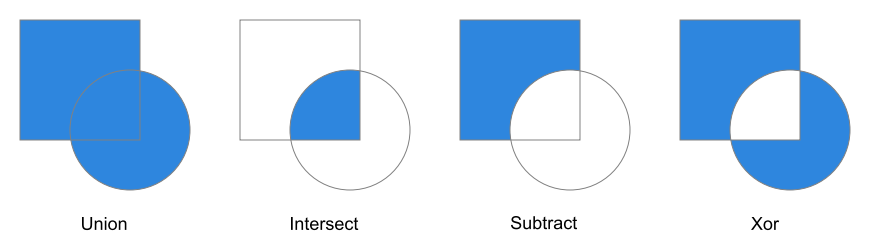
A square and a circle combined four ways: union, intersection, subtraction and exclusive or.
The blue fill shows the resulting region for Union, Intersect, Subtract and Xor, from left to right.

Shape the contour your process needs

A Path can hold several outlines made of line segments and Bézier curves. Rotate, scale or translate those outlines together. The same path can define a filled region, the centerline of a stroke or the boundary of a clipping mask.

Combine two regions

Union joins the two filled regions. Intersect keeps their overlap. Subtract cuts the second shape out of the first; Xor keeps the parts that belong to exactly one shape. Each operation returns a new path. Use the result as a window for an image or as a cutout in another design.

Offset an edge or size a region

OffsetContour(delta) offsets a contour by a specified distance. Inflate grows or shrinks closed regions and lets you choose how corners join. GetOuterContours extracts the external boundaries when internal holes should stay off a cut plate.

Clean up a traced outline

Simplify removes redundant points within a tolerance. Smooth rounds local variations over a distance set by sigma and keeps open endpoints fixed. FitCurves fits cubic Béziers to polylines; Flatten converts curves back to line segments. Check the bounds and filled area when the finished size matters.

Edit an object inside existing artwork

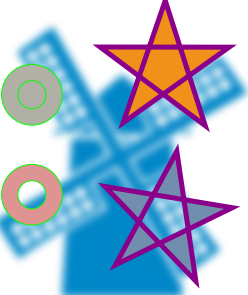
Create a GraphicsContainer and draw into it with GetGraphics(), or get one from a PDF page or an SVG frame. Its drawing objects remain available to inspect, change and draw again. These two previews come from the original and edited PDFs.

Find the objects you need

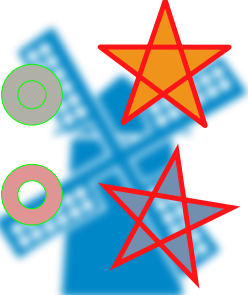
Two red-outlined stars and two green-outlined circles over a blue image.
Source PDF. Look at the red strokes around the two stars.

Items exposes the objects at one level: a ShapeItem has a path, pen and brush; an ImageItem carries bitmap artwork; a TextItem represents text. A ContainerItem holds another GraphicsContainer. Use Walk to visit the nested objects as well.

Change the pen and redraw the page

The same stars with dark magenta outlines alongside the green circles.
Output PDF. The two star outlines are now dark magenta.

The sample finds shapes with red strokes among the top-level items. It replaces their pens with dark magenta pens of the same width, then draws the container onto a new PDF page. The green circles and the background image keep their original appearance.

Choose how a path is painted

Control the stroke

A Pen sets width, end caps, joins, the miter limit and a dash pattern with its starting offset. A pen can also take a brush. If downstream equipment needs closed shapes, Path.Widen turns the visible stroke, including each dash and its caps, into filled outlines.

Fill with color, a gradient or a tile

Use a SolidBrush for one color. LinearGradientBrush and RadialGradientBrush place color stops along a line or between circles. A TilingBrush repeats artwork from its own graphics container. The watermark example draws text into a tile, then uses that brush to fill a photograph.

Clip the shape or vary its opacity

ClippingPaths limits drawing to a vector boundary. A SoftMask uses alpha or luminosity to vary opacity within the artwork. In the sample, a gradient fades one photograph while an alpha mask shapes another. The saved PDF retains the soft mask as a PDF object.

From transparent artwork to a cut plate

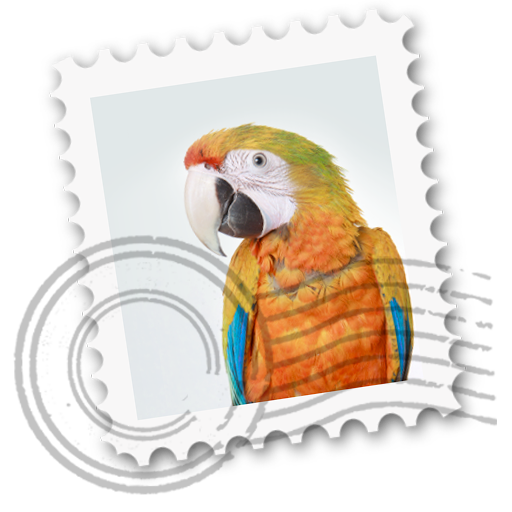
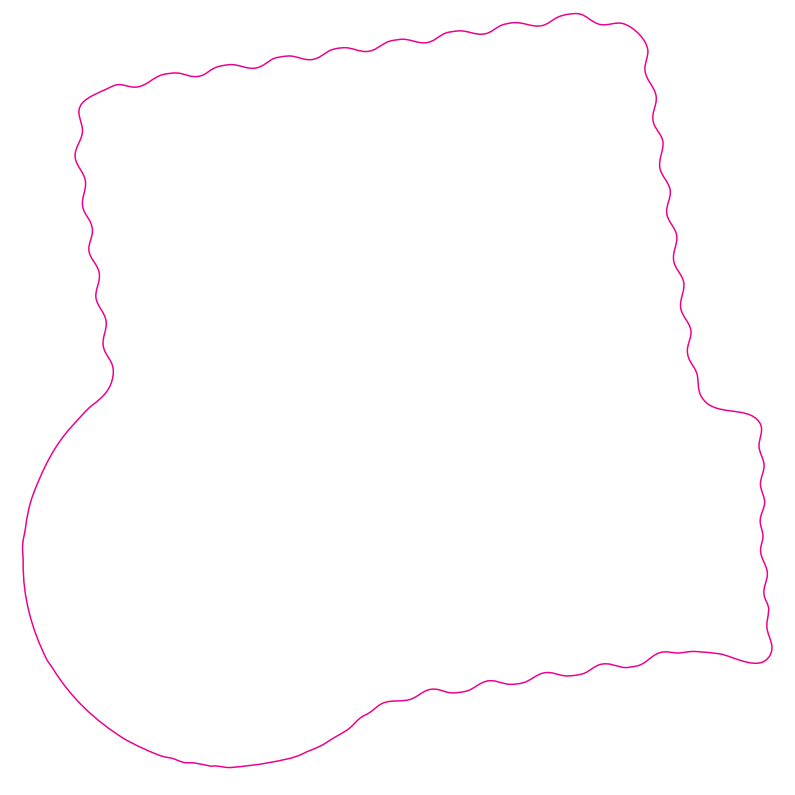
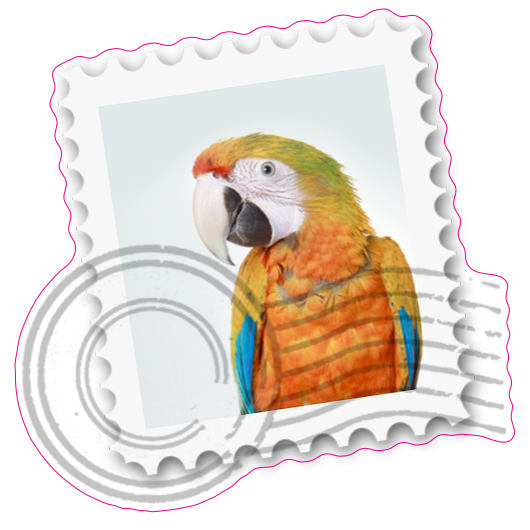
For this sticker, GetContour traces the PNG at 50% opacity. Two Inflate operations join the postmark and stamp and leave a 0.125-inch margin. GetOuterContours removes internal holes; FitCurves fits the cut line to smooth curves. The PDF contains the original artwork and a separate spot stroke named CutContour.

A parrot stamp and postmark on a transparent background.
Source artwork
The outer cut line follows the stamp and postmark in a single pink outline.
Cut line alone
The pink cut line surrounds the parrot stamp and postmark.
Finished sticker

Render the composition to PDF, SVG or pixels

Draw paths, type and images onto a Graphics surface, or reuse an assembled GraphicsContainer. Choose the writer or rasterizer for the file your customer needs.

PDF for production

PdfWriter provides a drawing surface for positioned objects, including text measured in a production font. On the two-sided card, the application places type and geometry on two blank pages. A separate sample draws both text and an image onto a named spot plate over CMYK.

Bitmap for a preview

The rasterization sample reads a PDF page as a container and renders it to a 300 dpi, 32-bit ARGB bitmap with a transparent background. Set the target resolution and pixel format for your proof, then save it to PNG.

Try the geometry engine with your own artwork

Choose a design with an overlapping shape, a tight corner or a stroke that must become an outline. Apply the operation, inspect the resulting path, then render it in the format your workflow expects.