- About Graphics Mill
- What's New?
- Breaking Changes in Graphics Mill 12
- Breaking Changes in Graphics Mill 11
- Features
- Supported File Formats
- System Requirements
- Getting Started
- Working with Image Formats
- Transforming Images (Resize, Rotate, Crop)
- Working with Metadata
- Color Management and Color Reduction
- Drawing Text and Graphics
- Color Keying (Green Screen Removal)
- Channels and Pixel Data
- Color and Tone Correction
- Working with Photoshop (PSD) Files
- Image Filters
- Processing Large Images
- Basics of Image Processing
- Troubleshooting
- Class Library Reference
- Licensing
- End User License Agreement
- Copyright Notices
Interpolation Modes Comparison
What is interpolation and why do we need it? When we apply geometric transformations to a raster image, we need to calculate new values for the pixels in the image. For example when we resize images, a group of pixels turns into one pixel (when image size is reduced), or vice versa - one pixel turns into a block of pixels (when an image is expanded). How to get the new values for pixels? Various strategies exist. They are called interpolation algorithms. Graphics Mill supports several interpolation modes for various transformations. But the wide variety begs the question: which interpolation to use?
Different algorithms produce different quality, but as usual the higher quality an algorithm produces, the slower it works. This article is devoted to helping you decide which interpolation mode is best suited to your case.
Resize Transformation
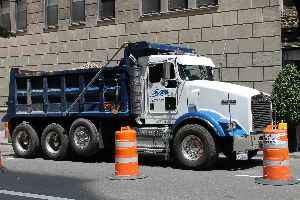
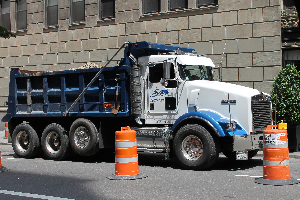
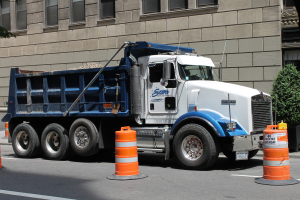
Interpolation modes for resize transformation are represented by the ResizeInterpolationMode enumeration. The table below demonstrates the results of resizing the same image using all the supported interpolation modes. This should help you estimate the quality and speed provided by each of these algorithms.
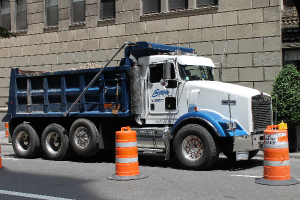
|
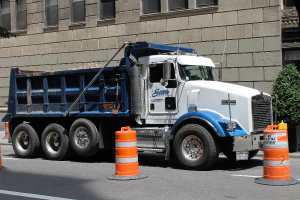
|
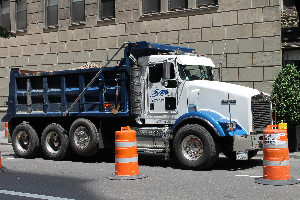
|
| Anisotropic4, 195 ms * | Anisotropic9, 199 ms * | Cubic, 196 ms * |
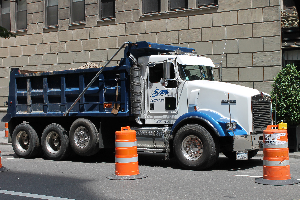
|
|
|
| Lanczos, 194 ms * | Linear, 202 ms * | Nearest Neighbour, 202 ms * |
|
||
| Supersampling, 263 ms * | ||
|
* Measured on an AMD Athlon II X4 630 Processor, 8 GB RAM. |
||
Additionally, there are three automatic interpolation modes (High, Medium, and Low). This means that any time you specify one of these values, the method automatically selects the appropriate interpolation mode to reach the desired quality.
Rotation and Other Linear Transformations
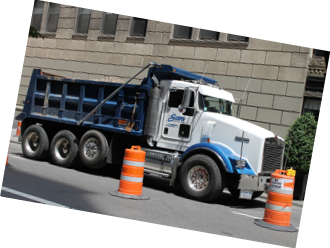
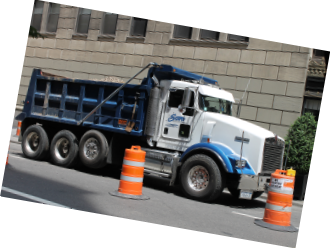
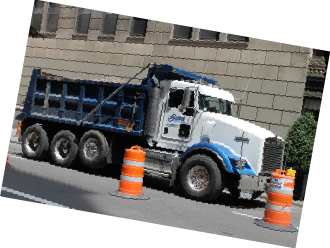
Interpolation modes for geometry transformations are represented by the InterpolationMode enumeration which contains automatic modes only. The table below demonstrates the results of rotating the same image using all the supported interpolation modes. This should help you estimate the quality and speed provided by each of these algorithms.
|
|
|
| High, 59 ms * | Medium, 36 ms * | Low, 35 ms * |
|
* Measured on an AMD Athlon II X4 630 Processor, 8 GB RAM. |
||