Pens and Brushes
Drawing functionality described in this topic is out of date. If you want to learn about pens and brushes represented by the new drawing engine in Graphics Mill, read the Graphics. Drawing Images and Geometric Shapes article.
Drawing functionality in Graphics Mill is presented by the Graphics class. And although you can use the System.Drawing.Graphics class for drawing purposes, we recommend that you read the AdvancedDrawing.Graphics vs Drawing.Graphics vs System.Drawing.Graphics topic before making a decision on which class to use.
There are two classes designed to manage the appearance of graphics drawn in Graphics Mill. The first one, Drawing.Pen, allows the changing of lines and curves, including a shape's outlines. The second class, Drawing.Brush, controls the filling of closed shapes (rectangles, ellipses, polygons, etc.).
Let us examine the Pen and Brush classes in more detail.
Pen
The Pen class specifies a number of settings for lines, curves, and outlines:
For information on how to draw lines and curves see the Drawing Lines and Curves topic.
Line Color and Width
The Pen.Color property specifies line color. The property does not support transparency information, so the color alpha channel will be ignored.
The minimum and default line width is 1. You can change width using the Pen.Width property.
To draw a line using a Pen object, you should pass this object as an argument to a drawing method, for example, DrawLine.
The code below draws crossed blue and red lines as shown in the image:

using (var bitmap = new Bitmap(100, 60, PixelFormat.Format24bppRgb, RgbColor.White))
{
    using (Graphics graphics = bitmap.GetGraphics())
    {
        var bluePen = new Pen(RgbColor.Blue, 8);
        graphics.DrawLine(bluePen, 10, 55, 90, 5);

        var redPen = new Pen(RgbColor.Red, 8);
        graphics.DrawLine(redPen, 10, 5, 90, 55);

        bitmap.Save(@"Images\Output\pen.png");
    }
}
You may notice that lines produced with a Graphics object are not smooth. Also, there is no possibility to draw semitransparent lines. This is a limitation of the Aurigma.GraphicsMill.Drawing.Graphics class. If you need to draw smooth or semitransparent lines, you can use the standard .NET drawing classes, which have similar APIs. Each class, Aurigma.GraphicsMill.Drawing.Graphics and System.Drawing.Graphics, has its own strengths and limitations. We recommend that you read the AdvancedDrawing.Graphics vs Drawing.Graphics vs System.Drawing.Graphics topic before making a decision on which class to use.
The code below also draws crossed blue and red lines, but it uses the System.Drawing.Graphics, and the result is quite different:

using (var bitmap = new Bitmap(100, 60, PixelFormat.Format24bppRgb, RgbColor.White))
{
    using (System.Drawing.Graphics graphics = bitmap.GetGdiPlusGraphics())
    {
        graphics.SmoothingMode = System.Drawing.Drawing2D.SmoothingMode.AntiAlias;

        var bluePen = new System.Drawing.Pen(System.Drawing.Color.Blue, 8);
        graphics.DrawLine(bluePen, 10, 55, 90, 5);

        var redPen = new System.Drawing.Pen(System.Drawing.Color.FromArgb(200, 255, 0, 0), 8);
        graphics.DrawLine(redPen, 10, 5, 90, 55);

        bitmap.Save(@"Images\Output\pen.png");
    }
}
Dash Styles
You can draw not only solid lines, but also dashed, dotted, etc. using several predefined patterns of dots and dashes. To set the pattern utilize the Pen.DashStyle property and the System.Drawing.Drawing2D.DashStyle enumeration.
The following code draws four lines of different color and style, as shown in the image:
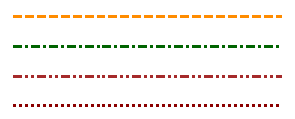
using (var bitmap = new Bitmap(100, 40, PixelFormat.Format24bppRgb, RgbColor.White))
{
    using (Graphics graphics = bitmap.GetGraphics())
    {
        //Dashed line
        var pen = new Pen(RgbColor.DarkOrange, 1, System.Drawing.Drawing2D.DashStyle.Dash);
        graphics.DrawLine(pen, 5, 5, 95, 5);

        //Line made of dash-dot patterns
        pen.Color = RgbColor.DarkGreen;
        pen.DashStyle = System.Drawing.Drawing2D.DashStyle.DashDot;
        graphics.DrawLine(pen, 5, 15, 95, 15);

        //Line made of dash-dot-dot patterns
        pen.Color = RgbColor.Brown;
        pen.DashStyle = System.Drawing.Drawing2D.DashStyle.DashDotDot;
        graphics.DrawLine(pen, 5, 25, 95, 25);

        //Dotted line
        pen.Color = RgbColor.DarkRed;
        pen.DashStyle = System.Drawing.Drawing2D.DashStyle.Dot;
        graphics.DrawLine(pen, 5, 35, 95, 35);

        bitmap.Save(@"Images\Output\pen.png");
    }
}
Line Caps
When an opened figure or a line is drawn, you can specify how to draw the line caps, which can be arrowed, circled, squared, and so on. An open line has two caps, the styles of which can be set via the Pen.StartCap and Pen.EndCap properties.
The following code draws lines with rounded, flat, and squared end caps, as shown in the image:
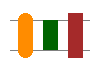
using (var bitmap = new Bitmap(100, 70, PixelFormat.Format24bppRgb, RgbColor.White))
{
    using (Graphics graphics = bitmap.GetGraphics())
    {
        //Horizontal line
        var pen = new Pen(RgbColor.Gray, 1);
        graphics.DrawLine(pen, 10, 20, 90, 20);
        graphics.DrawLine(pen, 10, 50, 90, 50);

        pen.Width = 15;

        //Line with rounded cap
        pen.Color = RgbColor.DarkOrange;
        pen.EndCap = LineCap.Round;
        graphics.DrawLine(pen, 25, 50, 25, 20);

        //Line with flat cap
        pen.Color = RgbColor.DarkGreen;
        pen.EndCap = LineCap.Flat;
        graphics.DrawLine(pen, 50, 50, 50, 20);

        //Line with square cap
        pen.Color = RgbColor.Brown;
        pen.EndCap = LineCap.Square;
        graphics.DrawLine(pen, 75, 50, 75, 20);

        bitmap.Save(@"Images\Output\pen.png");
    }
}
Line Joins
When drawing polylines, the junctions can be painted in different ways: rounded, sharp-edged, beveled, etc., depending on the Pen.LineJoin property value.
The image below shows three possible line joins. The corner in the middle could more or less sharper, depending on the Pen.MiterLimit property value.

The LineJoin and MiterLimit properties are also useful if you are styling polylines.
The following code draws the polylines shown in the image above:
using (var bitmap = new Bitmap(105, 35, PixelFormat.Format24bppRgb, RgbColor.White))
{
    using (Graphics graphics = bitmap.GetGraphics())
    {
        var pen = new Pen(RgbColor.DarkOrange, 9);

        //Round corner
        pen.LineJoin = System.Drawing.Drawing2D.LineJoin.Round;
        System.Drawing.Point[] points = {
            new System.Drawing.Point(10, 25),
            new System.Drawing.Point(30, 25),
            new System.Drawing.Point(30, 5)
        };
        graphics.DrawLines(pen, points);

        //Sharp corner
        pen.Color = RgbColor.DarkGreen;
        pen.LineJoin = System.Drawing.Drawing2D.LineJoin.Miter;
        points[0] = new System.Drawing.Point(40, 25);
        points[1] = new System.Drawing.Point(60, 25);
        points[2] = new System.Drawing.Point(60, 5);
        graphics.DrawLines(pen, points);

        //Diagonal corner
        pen.Color = RgbColor.Brown;
        pen.LineJoin = System.Drawing.Drawing2D.LineJoin.Bevel;
        points[0] = new System.Drawing.Point(70, 25);
        points[1] = new System.Drawing.Point(90, 25);
        points[2] = new System.Drawing.Point(90, 5);
        graphics.DrawLines(pen, points);

        bitmap.Save(@"Images\Output\pen.png");
    }
}
Brush
As mentioned above, brushes are used to specify how to fill shapes. Graphics Mill has two brush classes that provide different filling features: solid and hatch brush.
Solid brush is represented by the SolidBrush class, which has only one setting, Color.
Hatch brush is represented by the HatchBrush class. This brush has more settings:
- Hatch pattern specified by the HatchStyle property. There are six predefined hatch styles.
- Hatch fore color specified by the ForegroundColor property. The fore color does not support transparency, so the alpha channel of the color will be ignored.
- Hatch background. To set background color use the BackgroundColor property. To draw the pattern only, set the TransparentBackground property to
true.
The following code draws the blue ellipse shown in the image:

using (var bitmap = new Bitmap(100, 60, PixelFormat.Format24bppRgb, RgbColor.White))
{
    using (Graphics graphics = bitmap.GetGraphics())
    {
        var brush = new SolidBrush(RgbColor.Blue);

        graphics.FillEllipse(brush, 10, 5, 80, 50);

        bitmap.Save(@"Images\Output\brush.png");
    }
}
The System.Drawing.Graphics class provides wider support for filling shapes. In particular it has more than 50 hatch styles. For example, the following code draws the shape shown in the image:
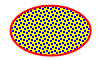
using (var bitmap = new Bitmap(100, 60, PixelFormat.Format24bppRgb, RgbColor.White))
{
    using (System.Drawing.Graphics graphics = bitmap.GetGdiPlusGraphics())
    {
        graphics.SmoothingMode = System.Drawing.Drawing2D.SmoothingMode.AntiAlias;

        var brush = new System.Drawing.Drawing2D.HatchBrush(
            System.Drawing.Drawing2D.HatchStyle.LargeConfetti,
            System.Drawing.Color.Blue, System.Drawing.Color.Yellow);

        graphics.FillEllipse(brush, 10, 5, 80, 50);

        var pen = new System.Drawing.Pen(
            System.Drawing.Color.FromArgb(200, 255, 0, 0), 2);

        graphics.DrawEllipse(pen, 10, 5, 80, 50);

        bitmap.Save(@"Images\Output\brush.png");
    }
}
See Also
Reference
- Drawing.Pen Class
- Pen.Color Property
- Pen.Width Property
- Pen.DashStyle Property
- Pen.StartCap Property
- Pen.EndCap Property
- Pen.Alignment Property
- Drawing.Brush Class